MailServer
Open MailServer’s details to manage the mail it handles.
Domains
Section titled “Domains”Domains lists the domains MailServer receives mail for, with how many accounts and aliases each has. Select New domain to add one. Adding a domain creates its DKIM key, which signs the mail sent from it so receiving servers can trust it. Once it is added, a notification stays open until you close it, because mail for the domain only works after its DNS records are in place and the mail ports are forwarded on your router. Select Show me how in it for both steps.
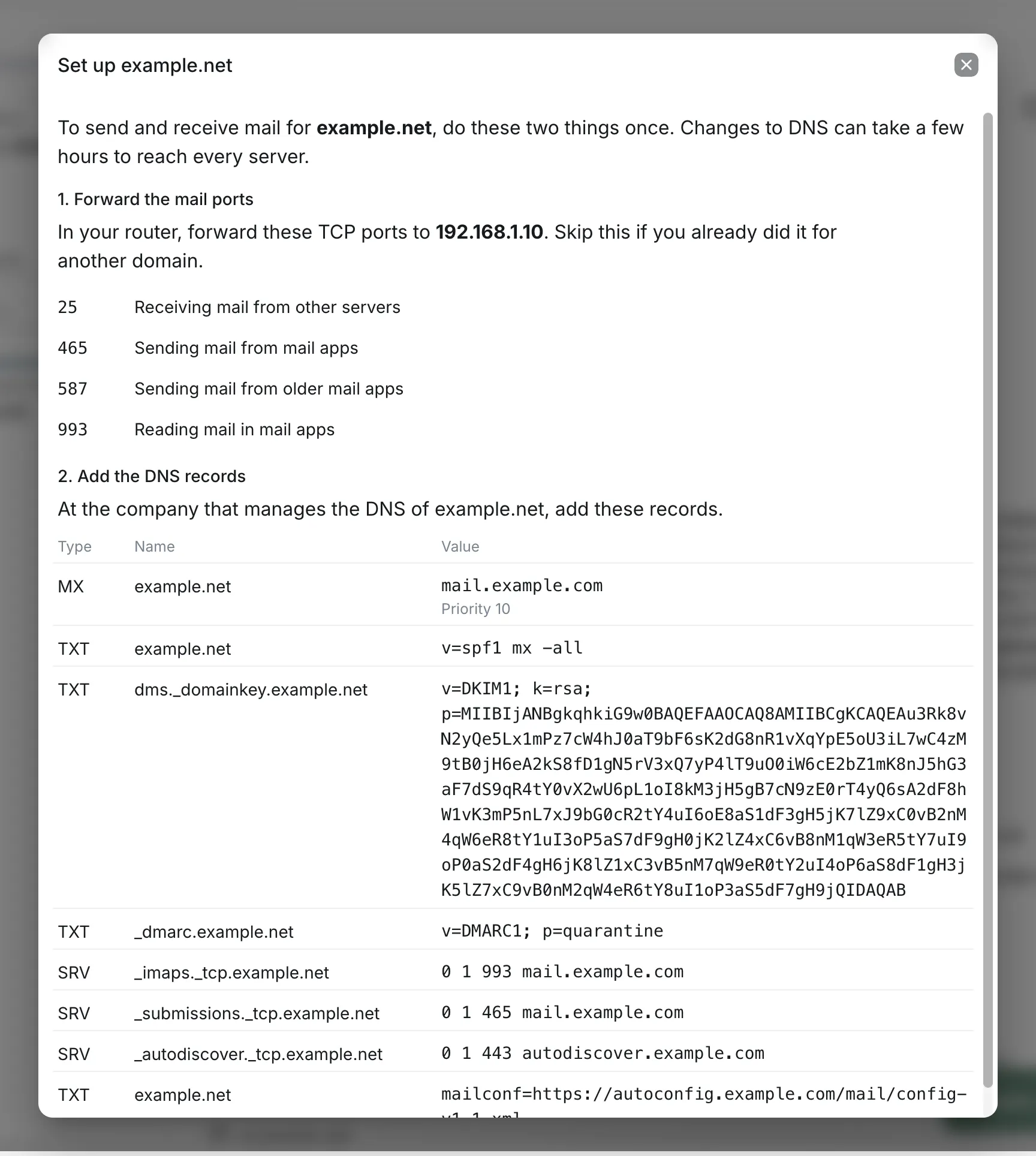
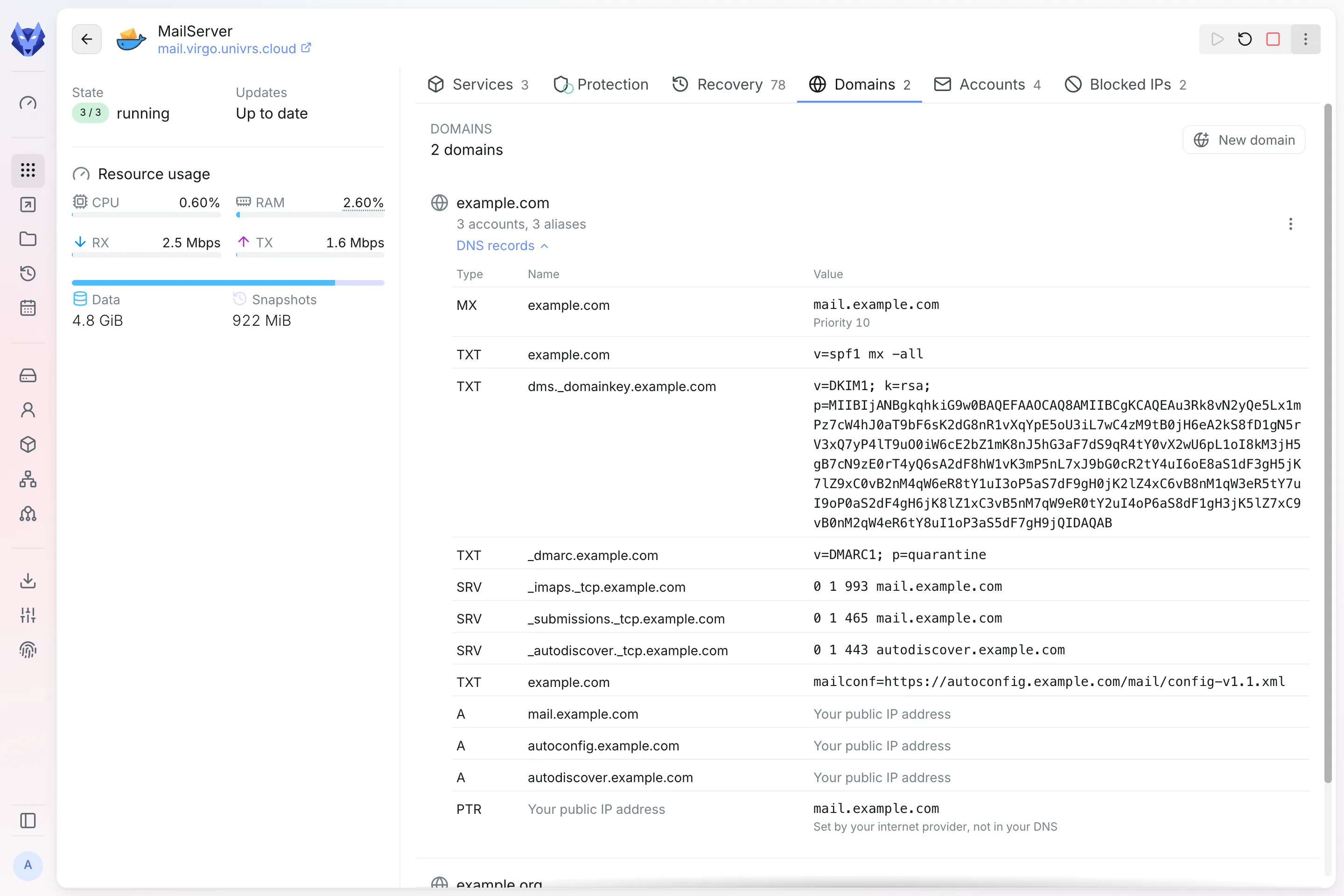
Select DNS records under a domain to see every record to add to that domain’s DNS, with its type, name and value: where its mail is delivered, which servers may send it, its DKIM key, what to do with mail that fails those checks, and how mail apps find their settings. The domain MailServer runs on also needs its mail host pointed at your public IP address, and your internet provider has to point that address back to the mail host. A domain without a key is marked in orange: select Create DKIM key in its menu. New DKIM key replaces the key; the old record stops working, so update the DNS right away. Delete removes the domain and its key, once it has no accounts or aliases left.
Accounts
Section titled “Accounts”Accounts lists the mailboxes, each with the space its mail takes up and its storage limit, and under each one the aliases that deliver to it. Aliases that forward to addresses outside MailServer are grouped at the end, under Forwarded elsewhere.
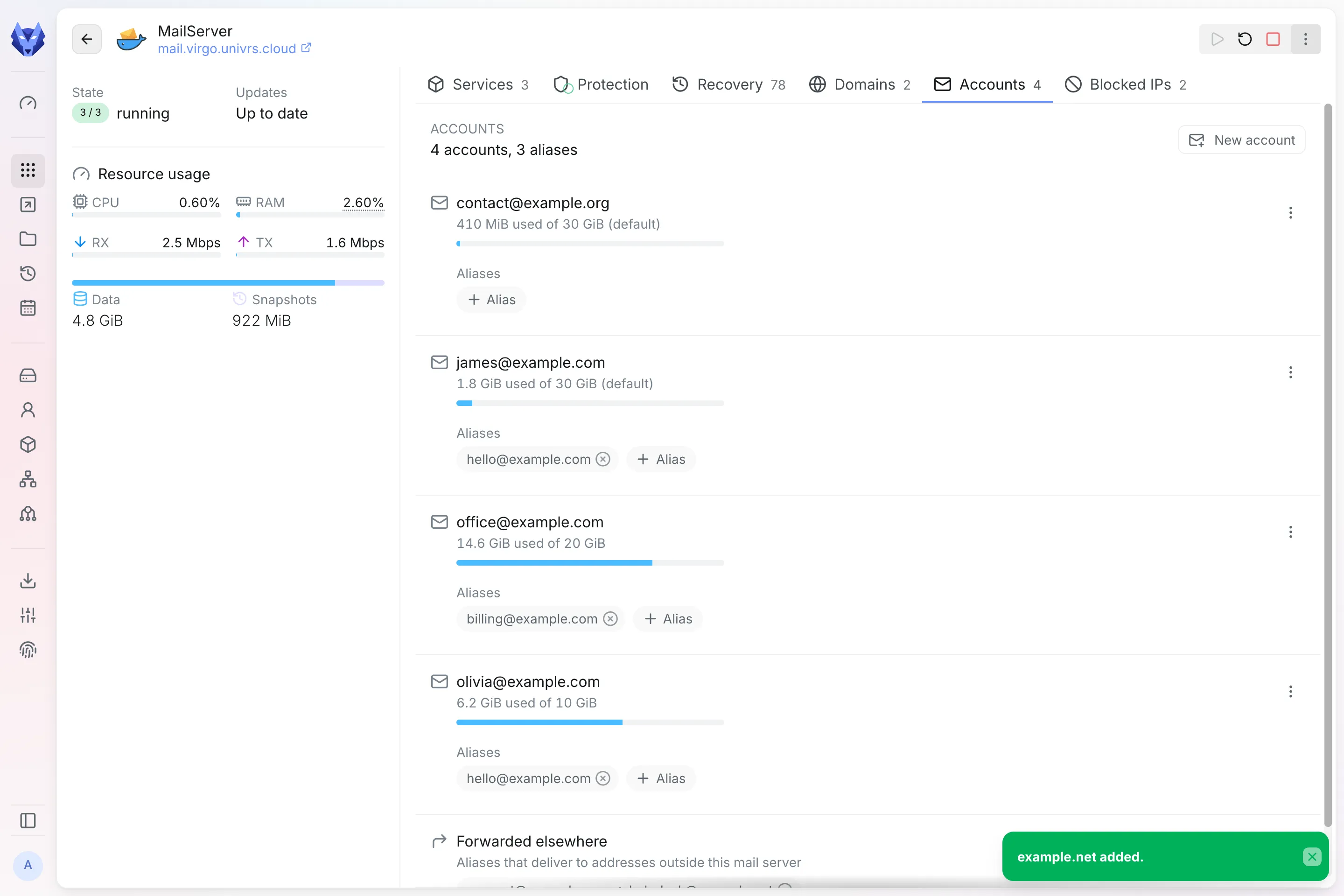
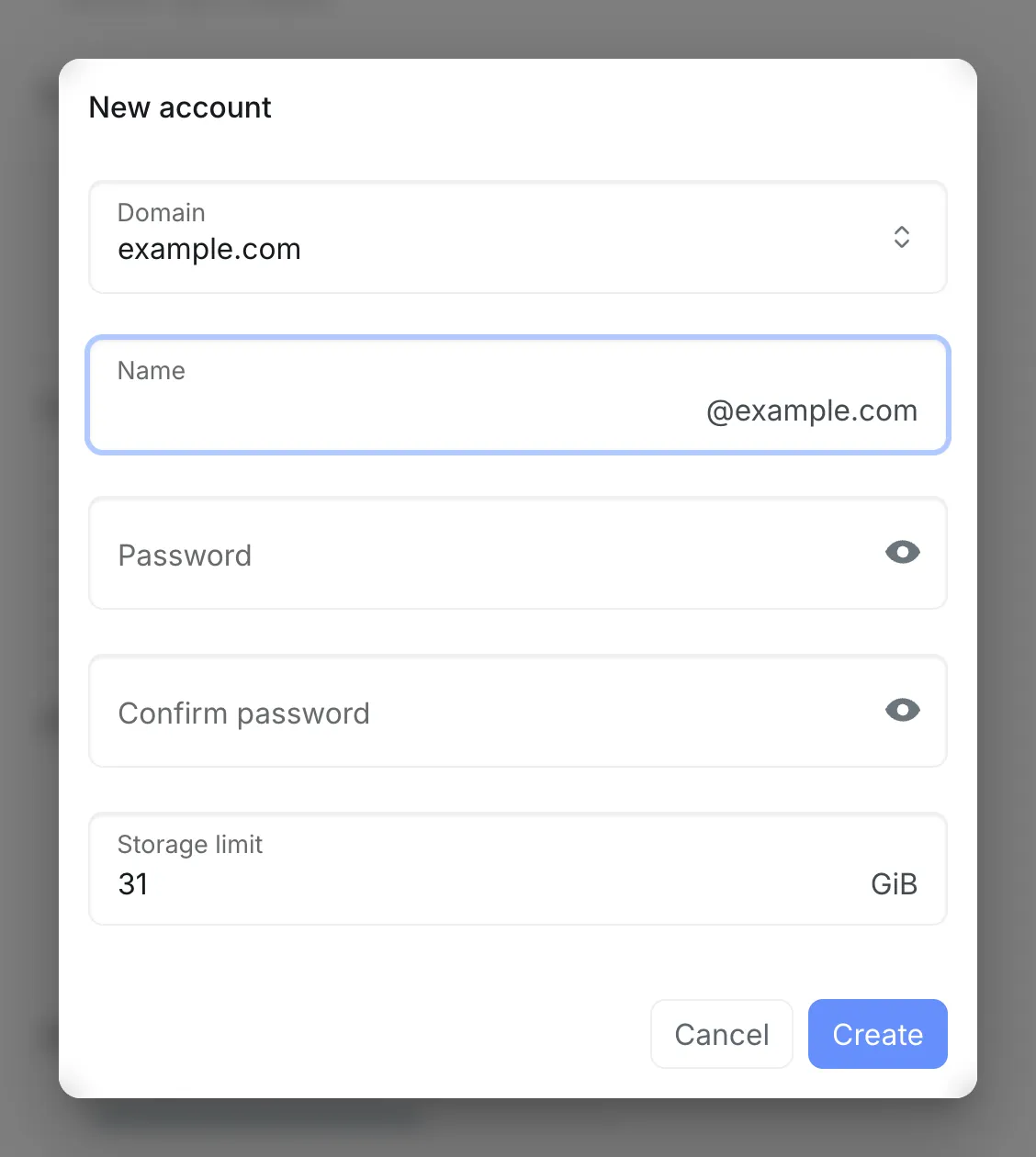
Select New account to create a mailbox: pick its domain, which starts on MailServer’s own domain, then its name, and set its password. The storage limit starts at MailServer’s default; keep it, or change it to give the account a limit of its own. Accounts on the default are marked (default) in the list.
An account’s menu changes its password or storage limit, or deletes it. Deleting an account permanently deletes all of its mail and its aliases. Select Alias after an account’s aliases to add one that delivers to it, or the cross on an alias to remove it.
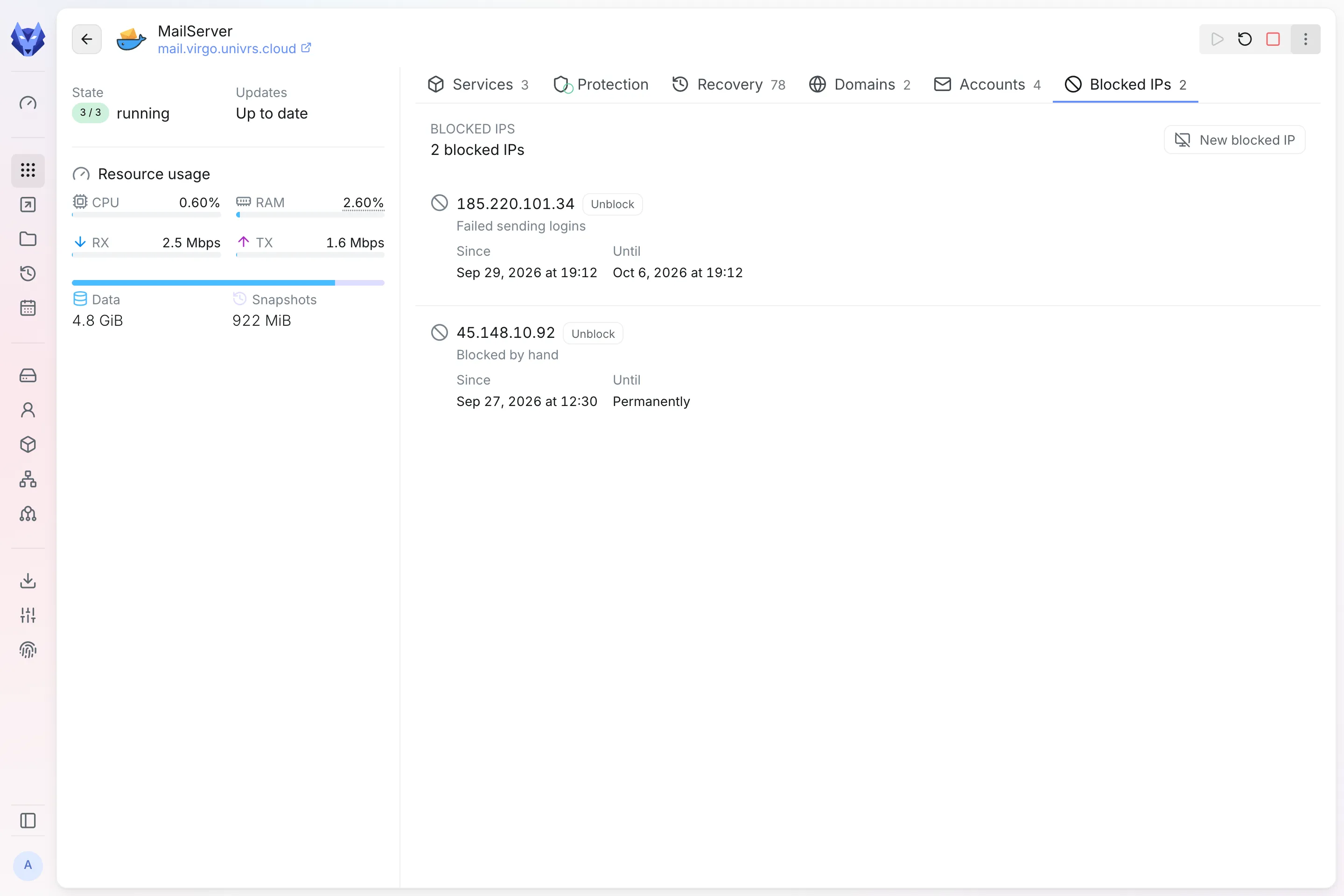
Blocked IPs
Section titled “Blocked IPs”MailServer blocks addresses that keep failing to log in. Blocked IPs lists them, with why each one was blocked, since when, and until when. Select Unblock to let an address back in, or New blocked IP to block one yourself.