Authentication
Signing in
Section titled “Signing in”Open the node at its name, for example https://spica.virgo.univrs.cloud, and sign in with your username and password.
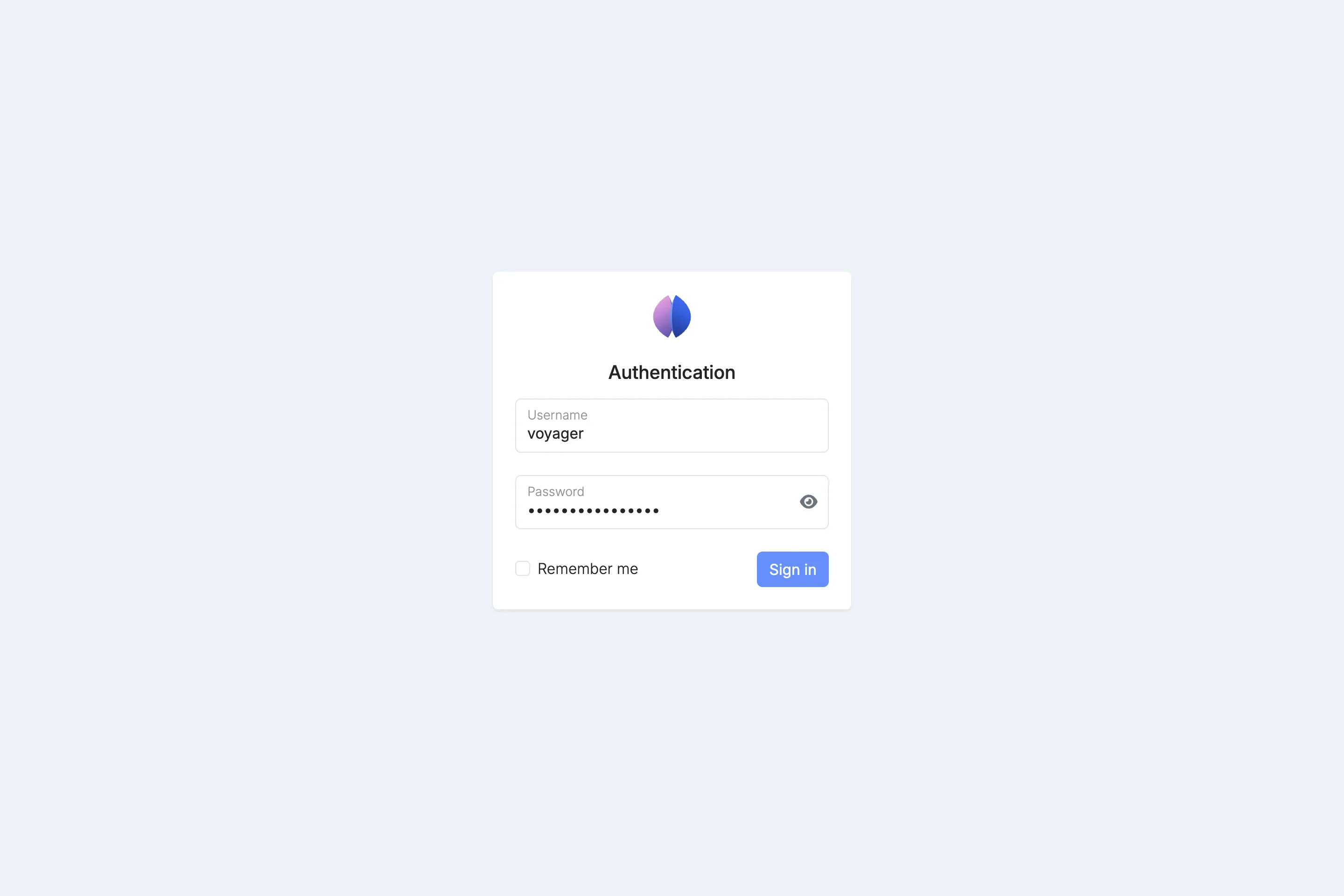
Signing in only works through the node’s name, not through its IP address.
Select Remember me to stay signed in on this browser for 7 days.
On your local network and over the VPN
Section titled “On your local network and over the VPN”On your local network (addresses starting with 192.168) and when connected through the node’s VPN, nothing is gated by a node account.
The Dashboard opens without signing in, so anyone there can quickly find the shortcuts to the apps they want to open. To change anything on the node, select Sign in.
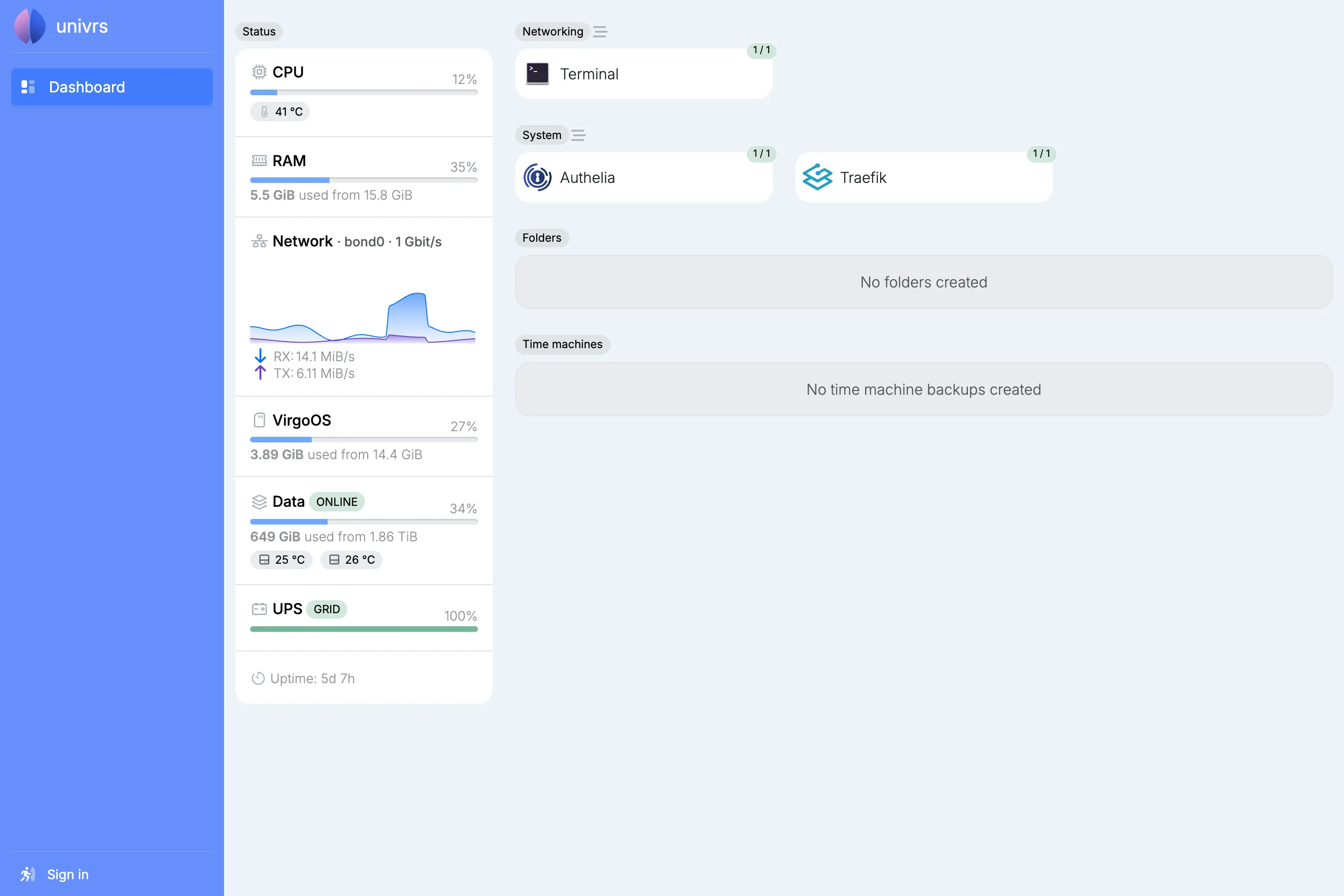
Apps open without the node’s sign-in too, but each app still asks you to sign in with its own account.
Apps and the node’s sign-in
Section titled “Apps and the node’s sign-in”From outside your network, not all apps are gated. Some are gated by a node account: you sign in to the node first, then to the app itself. The others only ask for their own sign-in.
Failed attempts
Section titled “Failed attempts”After 3 failed sign-in attempts within 10 minutes, signing in from that address is blocked for 12 hours.
Signing out
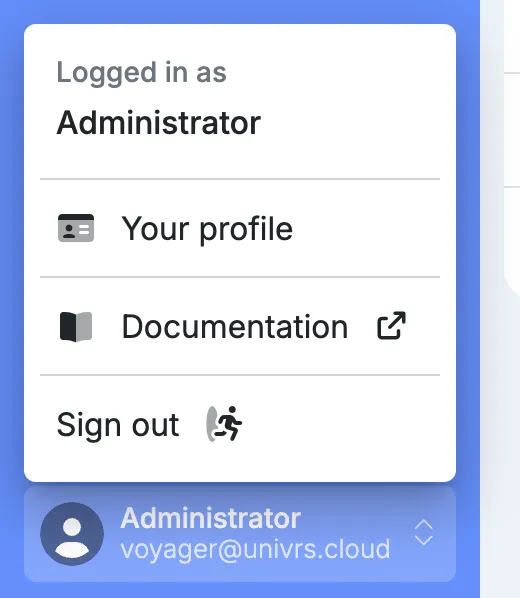
Section titled “Signing out”Open the account menu with your name, then select Sign out.
Through your fleet
Section titled “Through your fleet”When the node is registered with a fleet, you can also manage it from fleet.univrs.cloud. There you sign in with your fleet account, not with a user of the node.