
Rolling back
Roll back puts the whole app back the way it was at a restore point: its data, its settings and the versions it ran. Use it when an update broke the app.
You can roll back to the Update restore point, taken right before the app’s latest update.
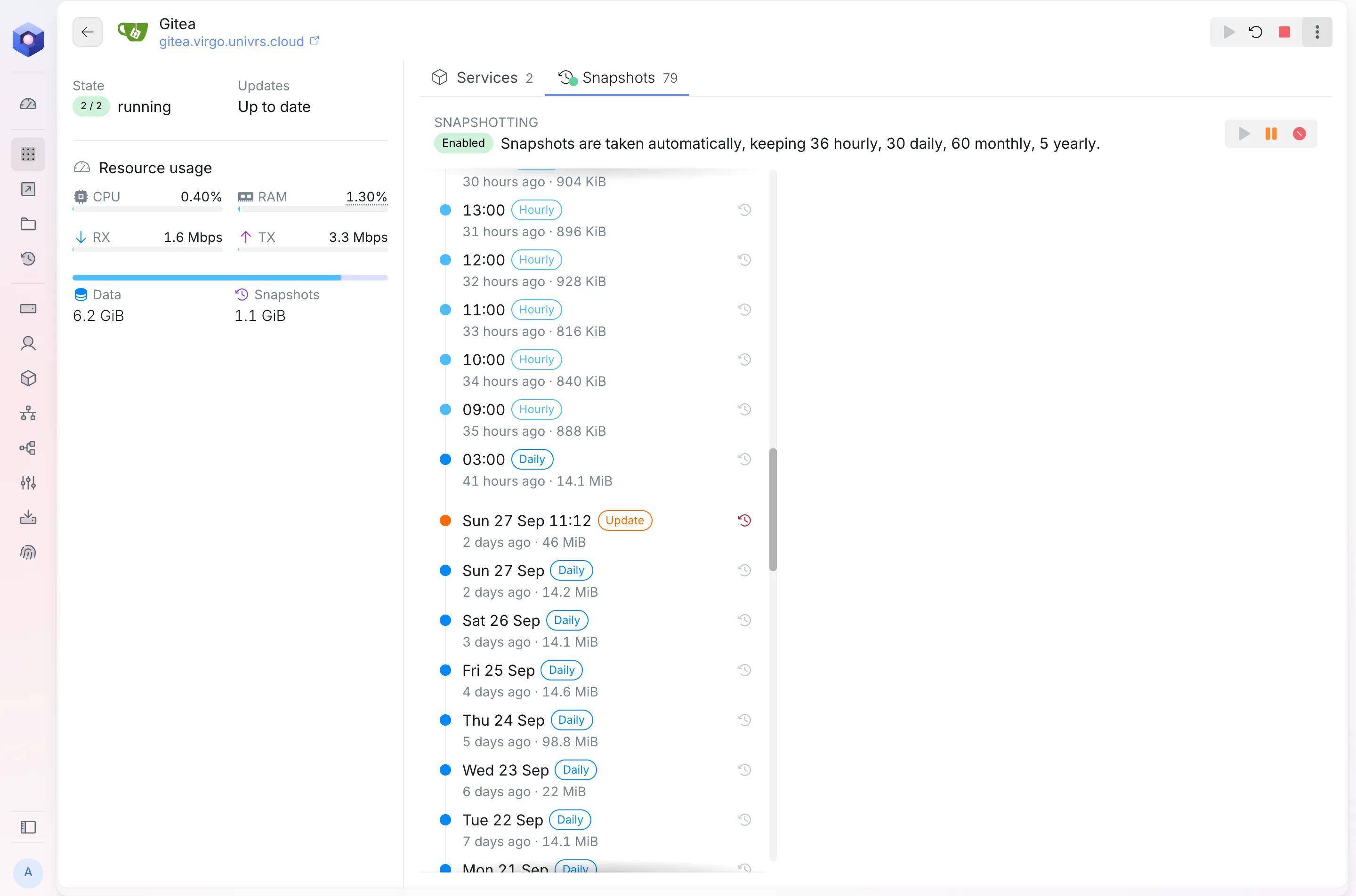
Rolling an app back
Section titled “Rolling an app back”Open the app’s Snapshots, select Roll back next to the Update restore point, and confirm.
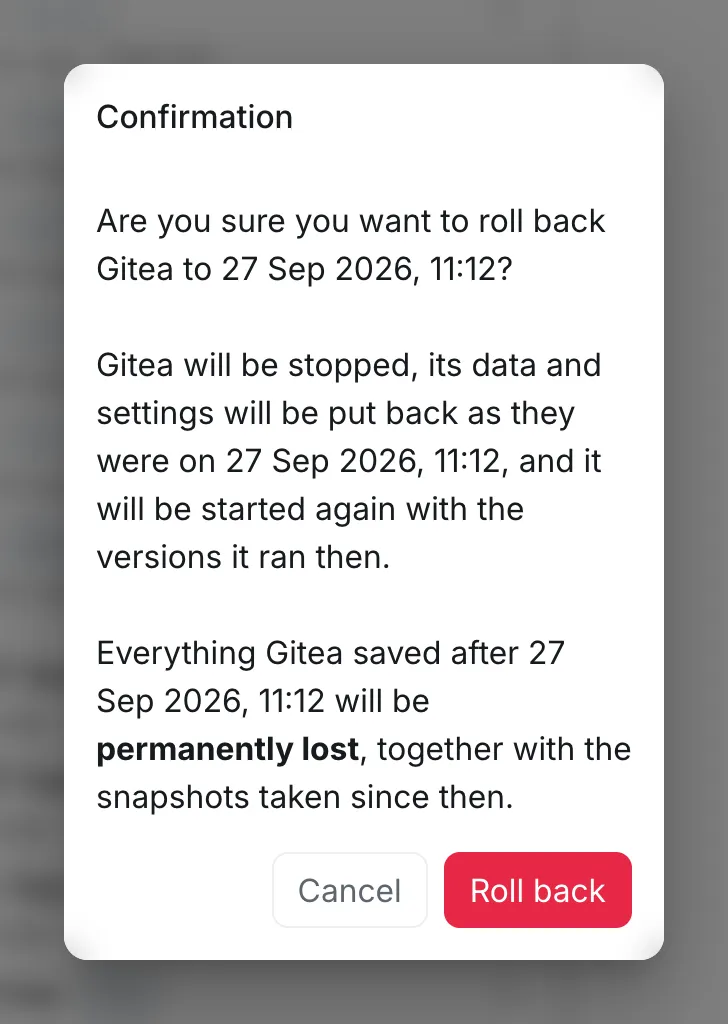
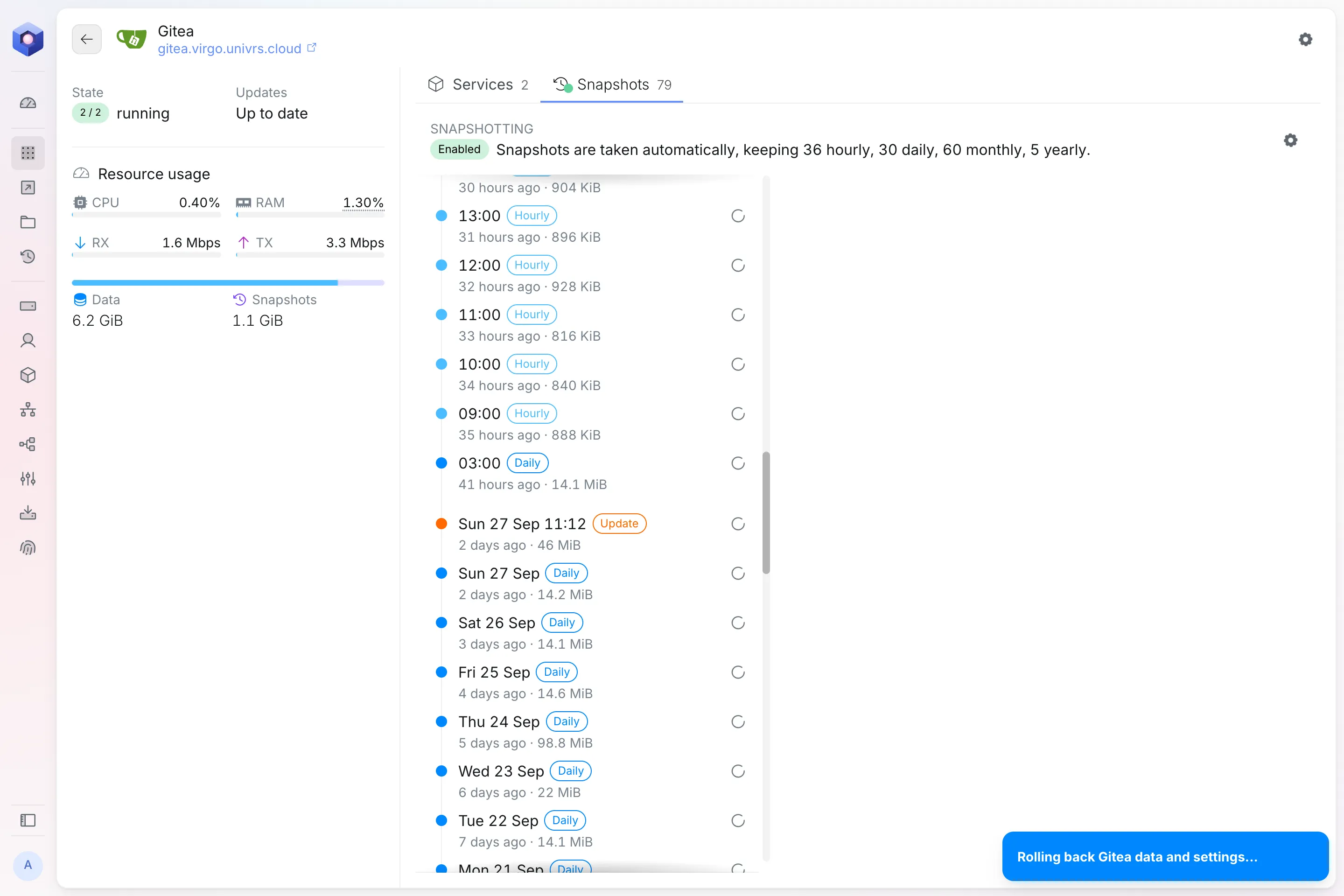
The node checks that the versions the app ran then can still be downloaded, stops the app, puts its data and settings back, downloads those versions and starts it again. A notification follows each step.
When a version can no longer be downloaded, the rollback stops before anything is changed and the notification says which part is missing.
Nextcloud
Section titled “Nextcloud”Nextcloud can be rolled back too, but to get back a few files or folders, browse, search and restore them instead, and everything else stays as it is.