Updates
Updates shows whether new versions of virgoOS are available and installs them.
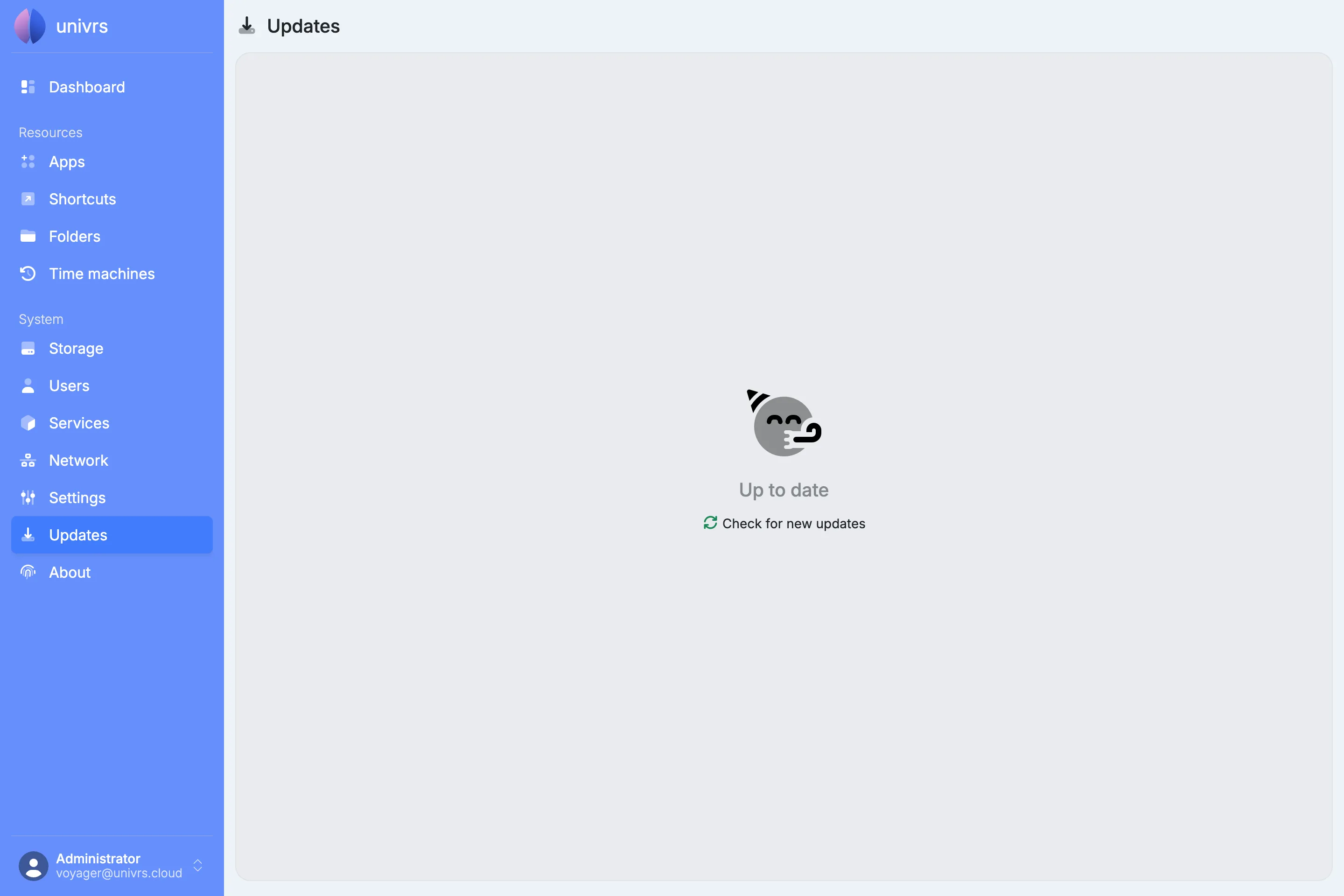
Up to date
Section titled “Up to date”The node checks for updates every day at midnight. When there is nothing to install, the page says Up to date.
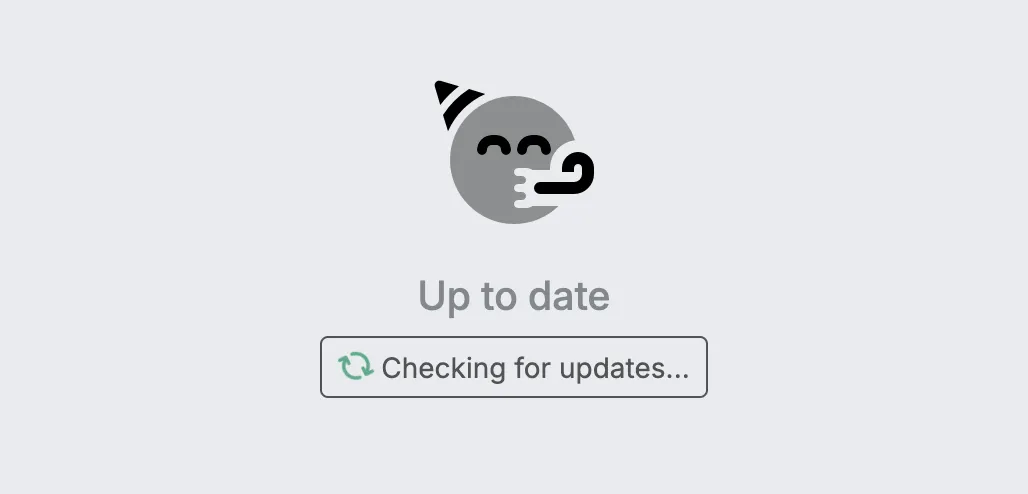
Select Check for new updates to check right away instead of waiting for the daily check.
When updates are available
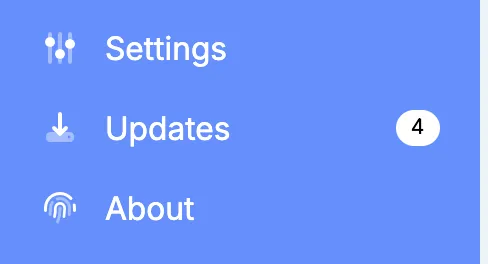
Section titled “When updates are available”When updates are available, Updates in the menu shows how many there are, so you see it from any page.
The Updates page lists each update with the version installed now and the version it updates to.
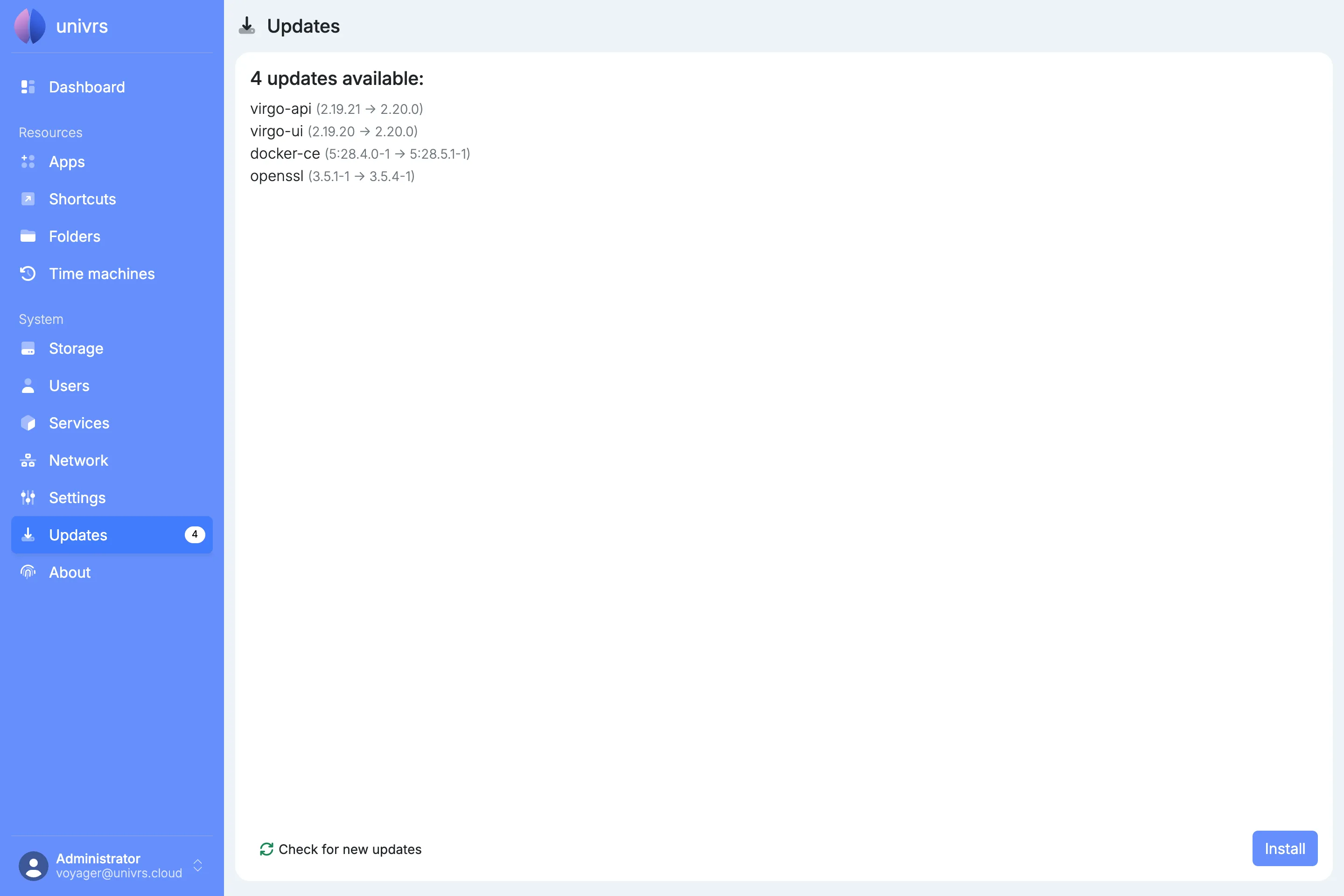
Select Install to install all of them. Install is not available while the node is checking for updates or while an app is being updated.
While an update runs
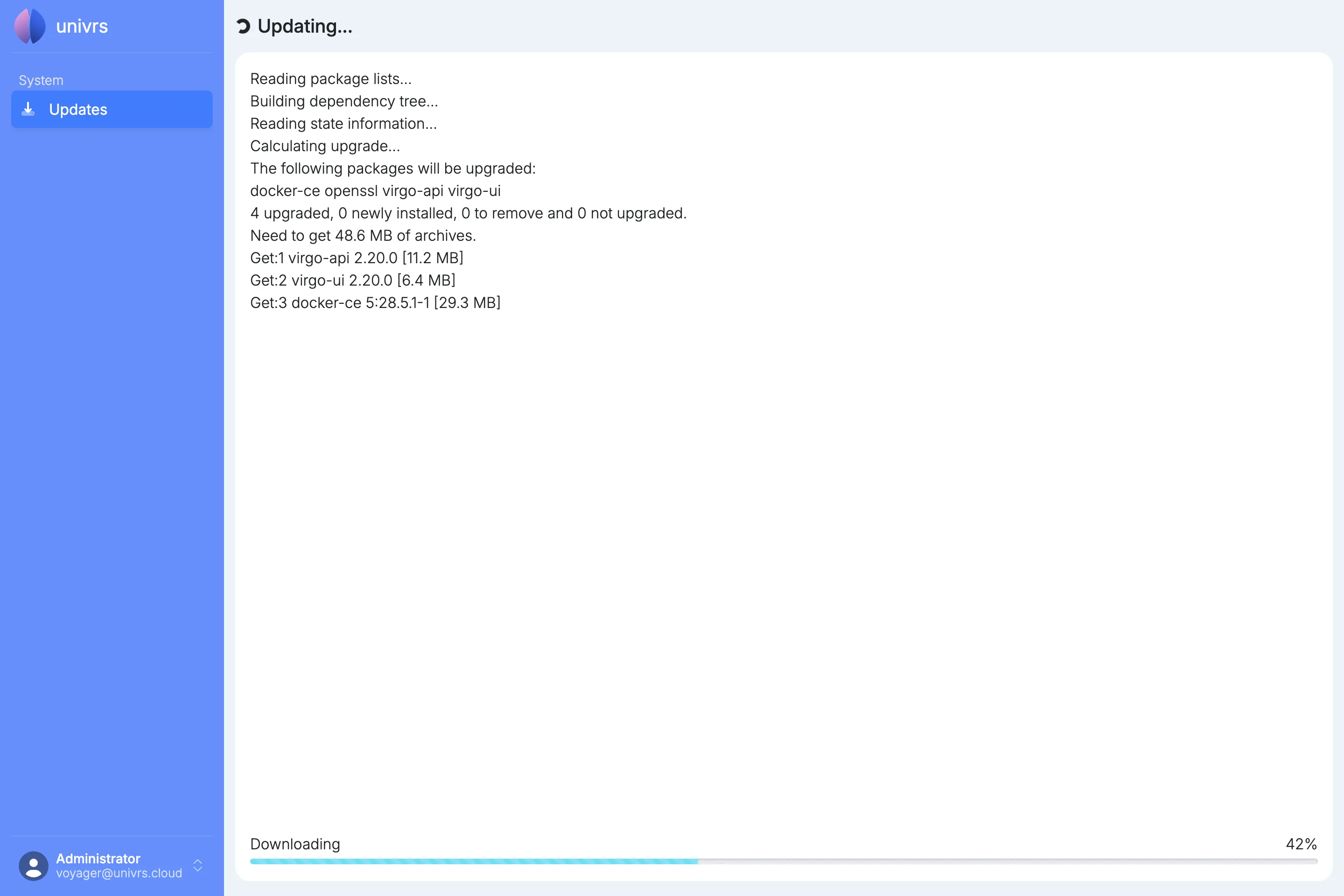
Section titled “While an update runs”The update shows each step as it happens, with the progress of the download and then of the installation. The node’s other pages stay closed until the update is finished and you continue.
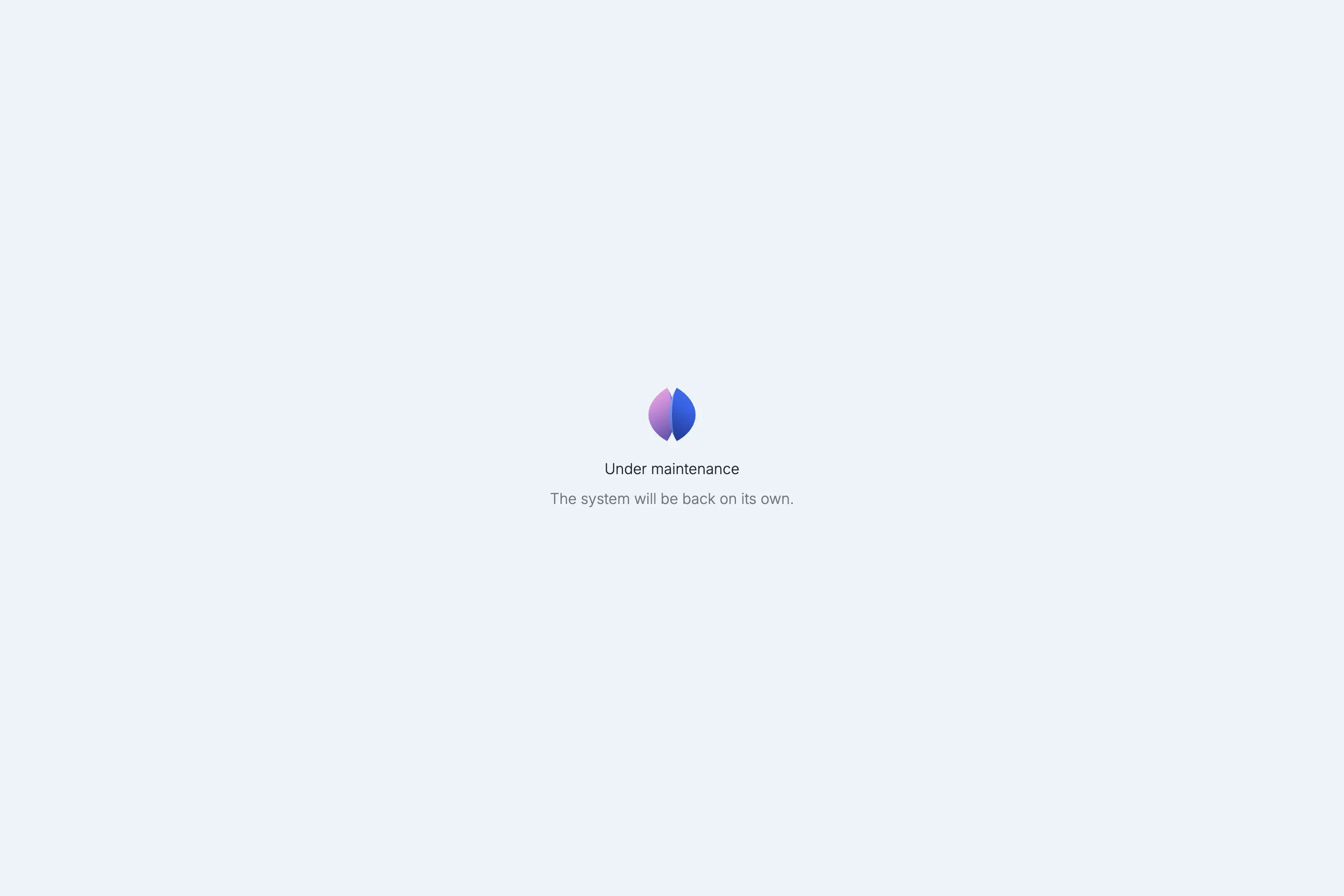
Everyone else who opens the node in the meantime, including users without the administrator role, sees that it is under maintenance and will be back on its own.
When it finishes
Section titled “When it finishes”When the update succeeds, select Continue to go back to the Dashboard.
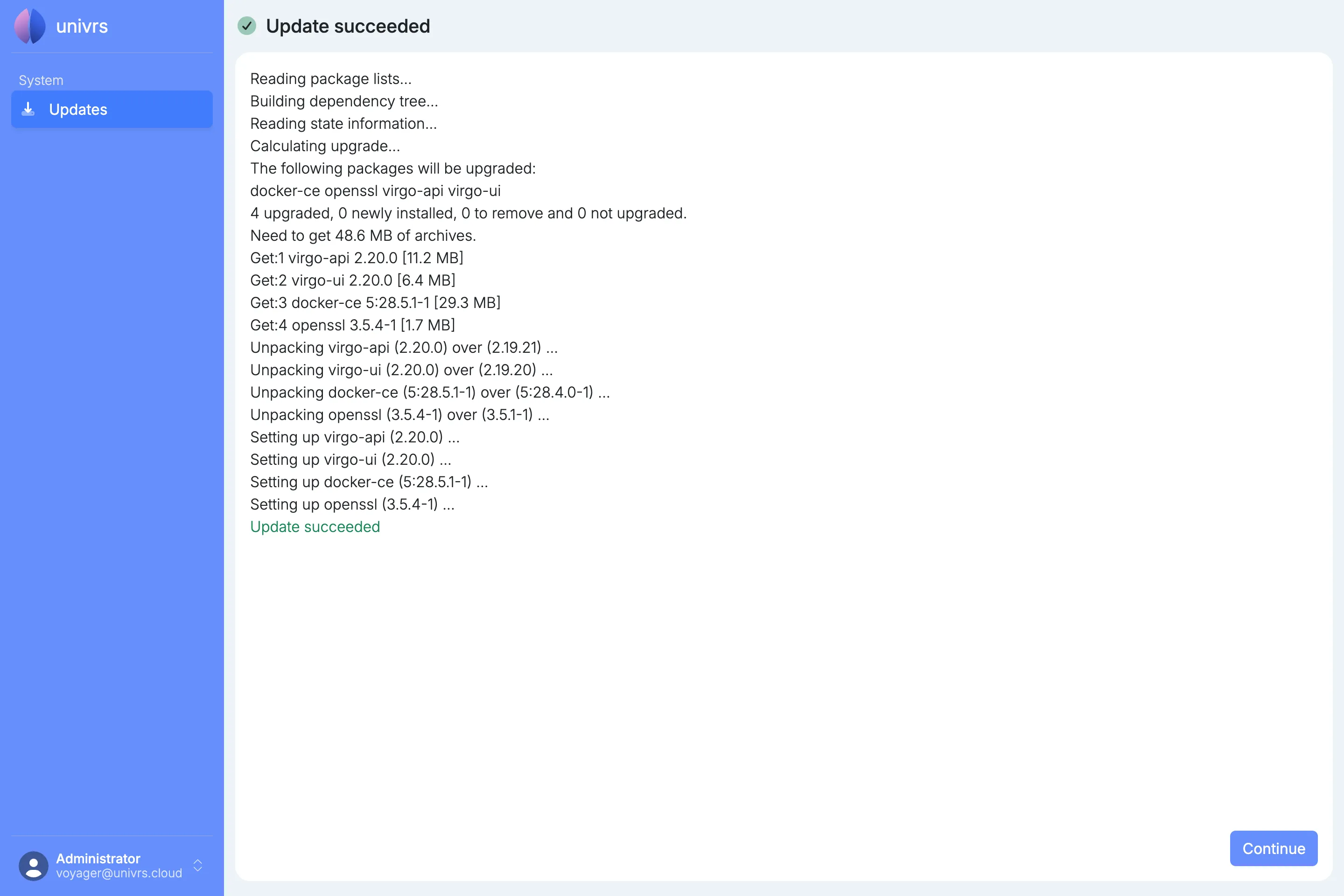
If the update needs a restart to take effect, Reboot appears instead of Continue, and the node restarts to finish the update.
If the update fails
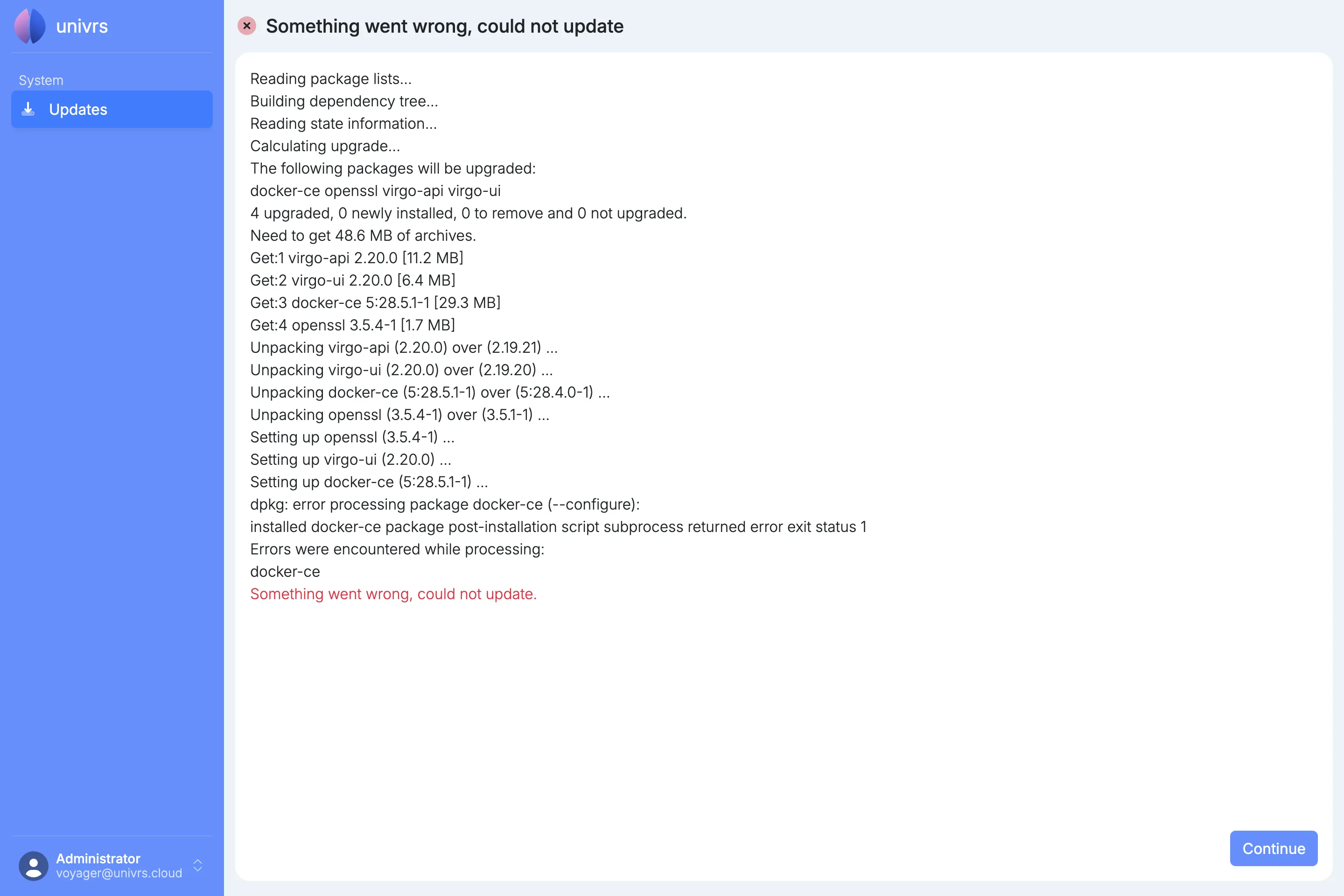
Section titled “If the update fails”If something goes wrong, for example a package fails to set up, the page says the update could not be completed and shows the steps up to the error. Select Continue to go back to the Dashboard, then install the updates again later.