Settings
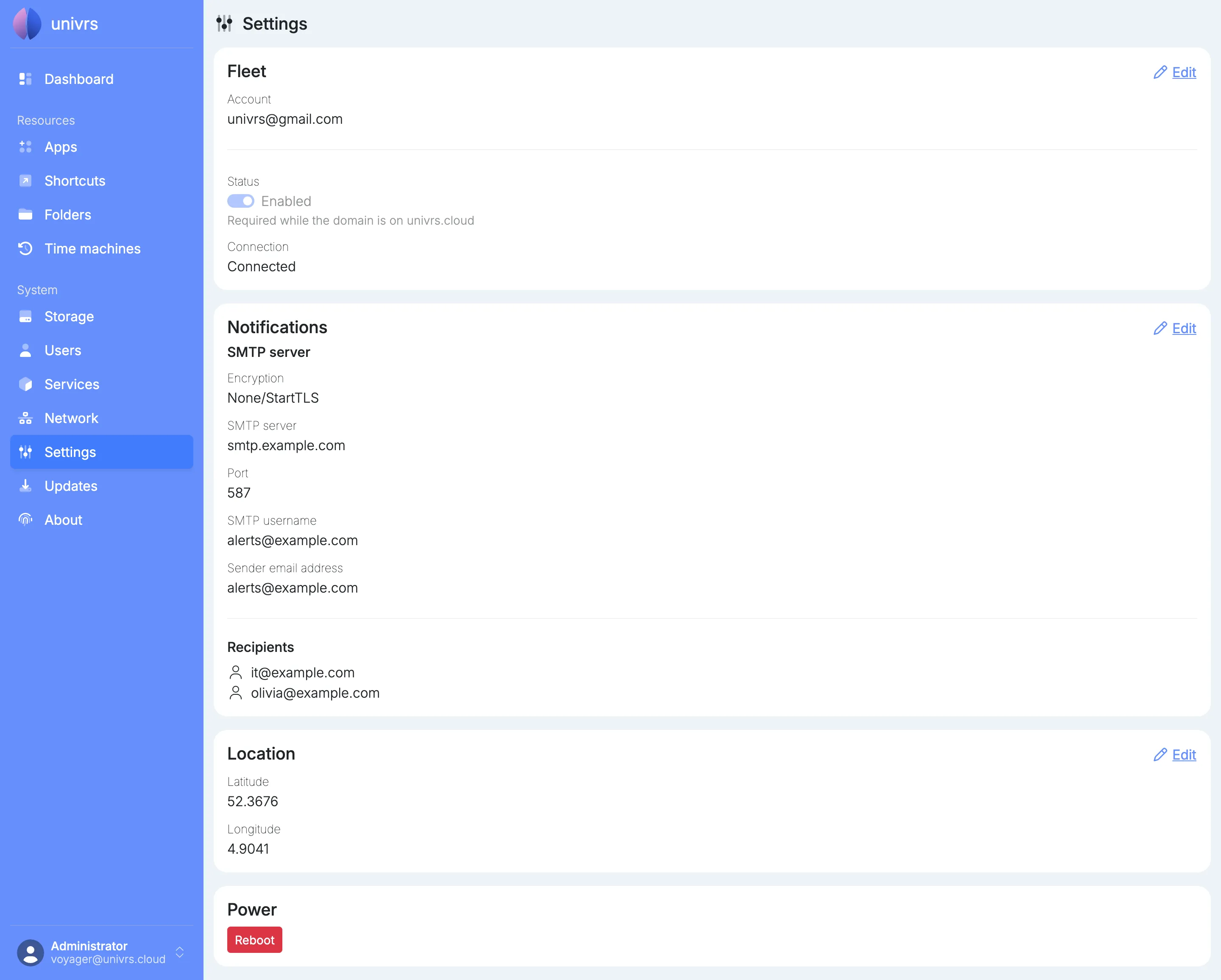
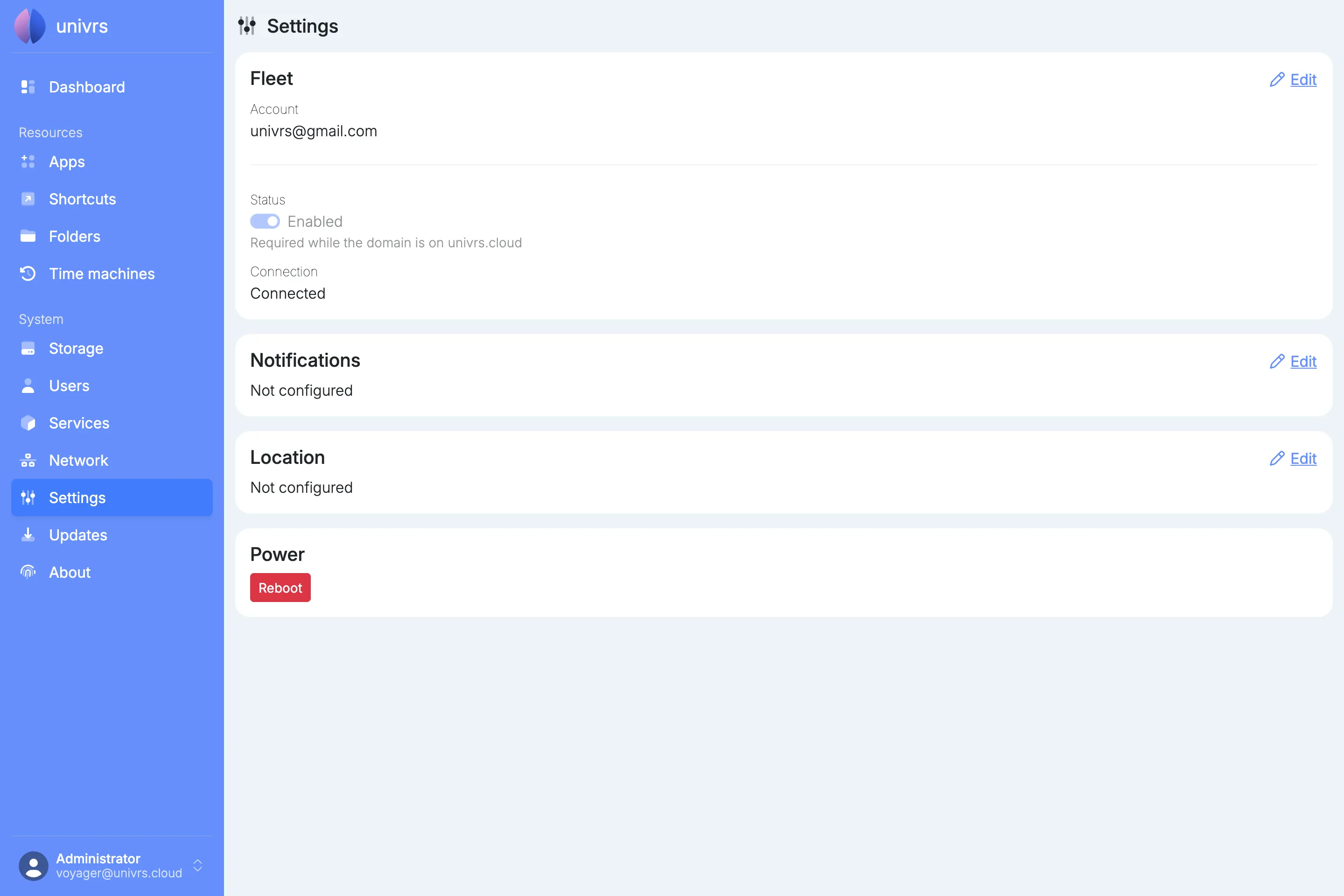
Settings holds the node’s fleet registration, its email notifications, its location and the reboot button. On a fresh install, Fleet shows the registration made during setup, Notifications and Location are not configured yet, and Power lets you reboot the node.
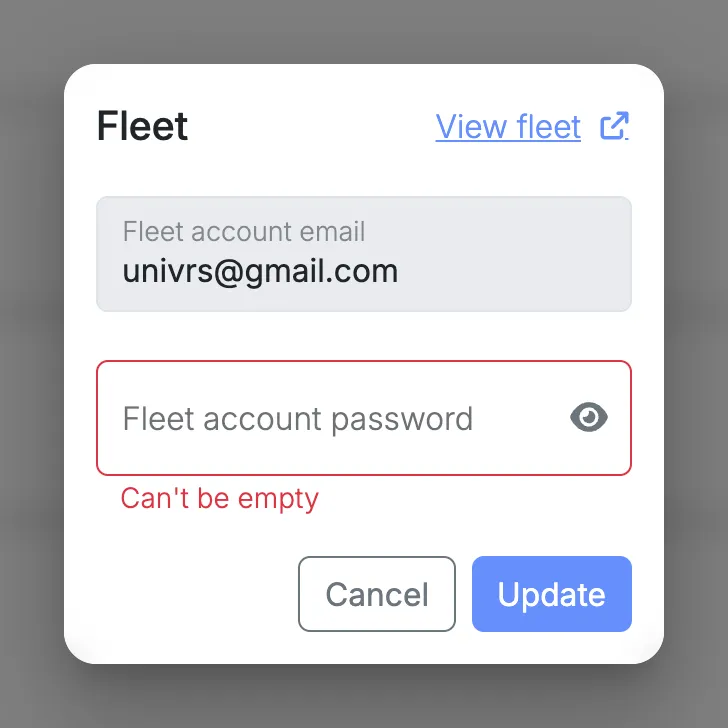
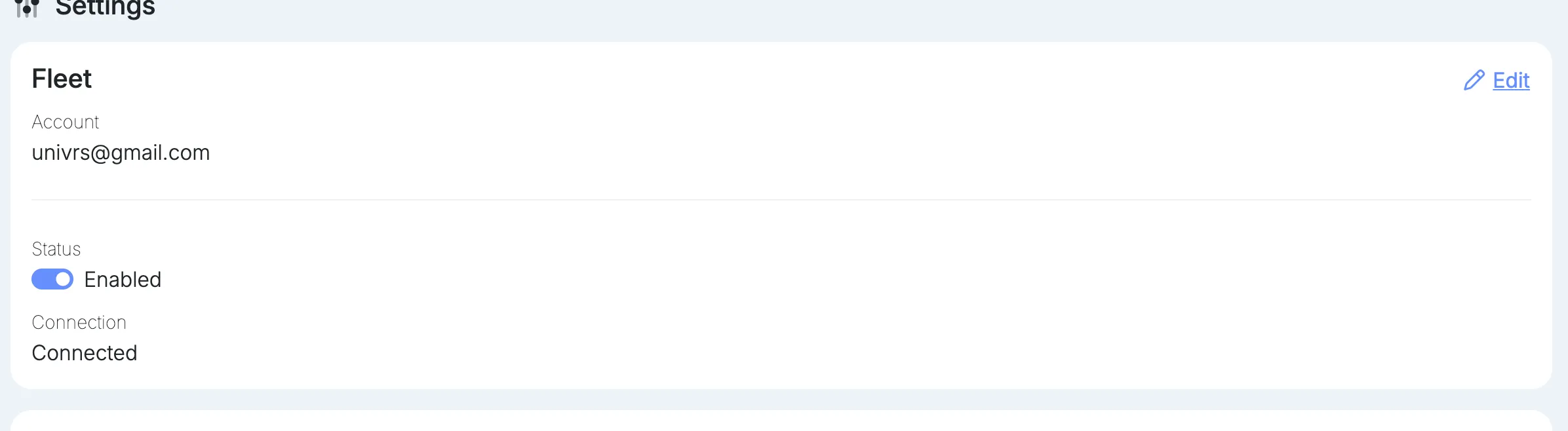
The Fleet card shows the fleet account the node is registered with and whether it is connected. Select Edit to register it with a fleet account again, or Register if it is not registered yet.
Status turns the connection to the fleet on or off. On univrs.cloud it cannot be turned off, because the fleet provides the node’s DNS record and certificate. On your own domain it can.
If the card says Registration expired, please re-register., select Edit and register again.
Notifications
Section titled “Notifications”The node emails you about problems with its storage pool and drives, and about what changed when updates are installed. For that it needs an SMTP server to send through. Select Edit on the Notifications card.
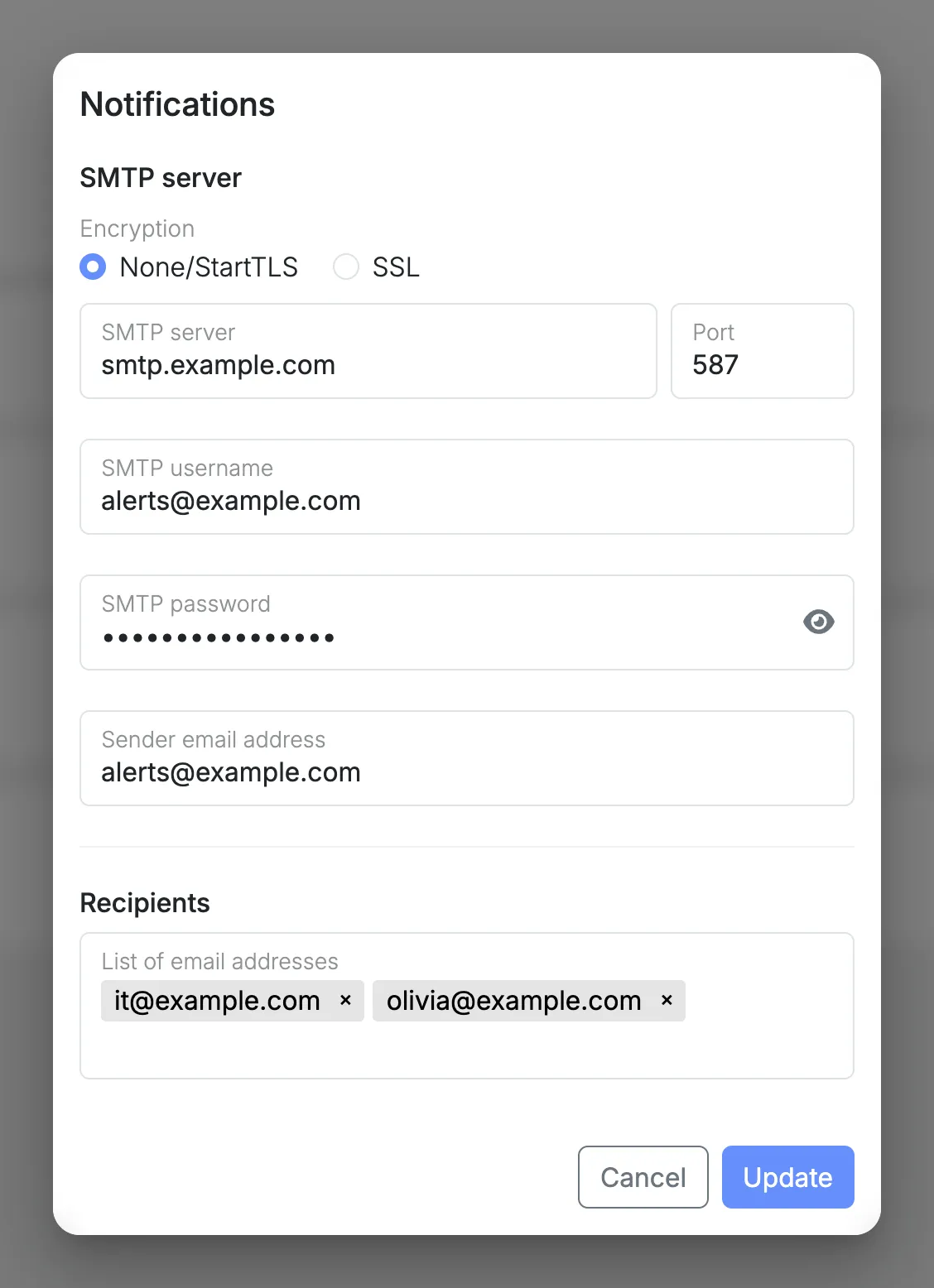
- Encryption: None/StartTLS for servers that start encryption on the connection, usually on port 587, or SSL for servers that expect it from the start, usually on port 465.
- SMTP server and Port: the address and port of the mail server.
- SMTP username and SMTP password: the account the node signs in to the mail server with. Leave both empty if the server does not ask for one.
- Sender email address: the address the emails come from.
- Recipients: the addresses the emails go to. Separate addresses with a comma or a space.
Location
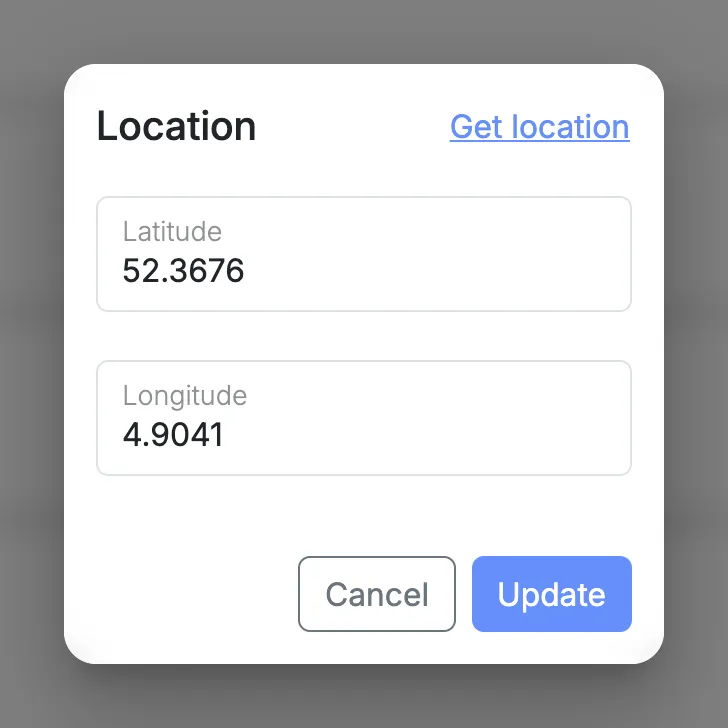
Section titled “Location”The location sets where the weather on the Dashboard is for. Select Edit on the Location card, then enter the latitude and longitude, or select Get location to use your browser’s location.
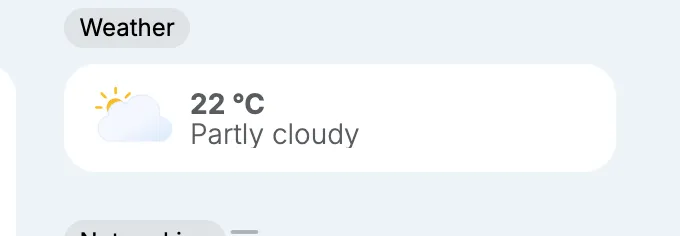
Once a location is set, the Dashboard shows the current weather there, updated every hour.
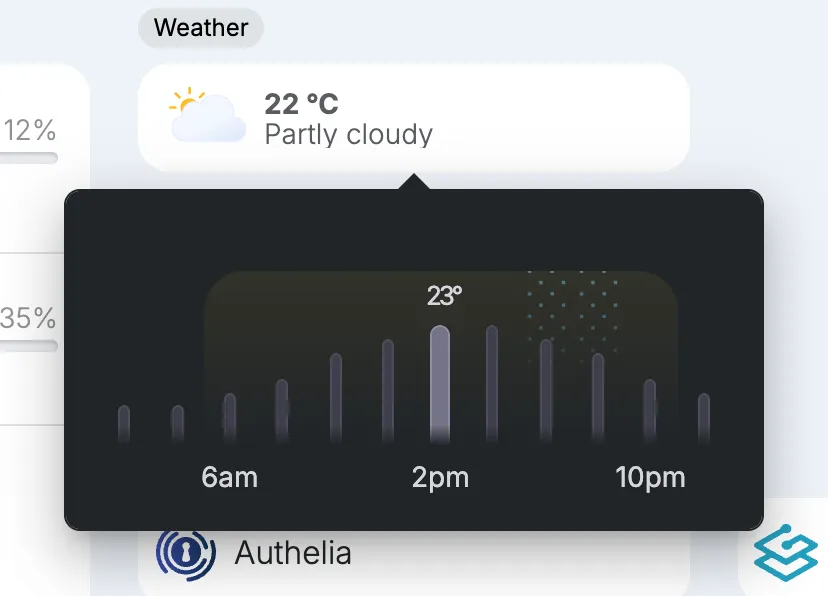
Select it to see today’s temperatures every two hours, with the current time highlighted. The shaded part is daylight, and dotted columns mark hours with a chance of rain.
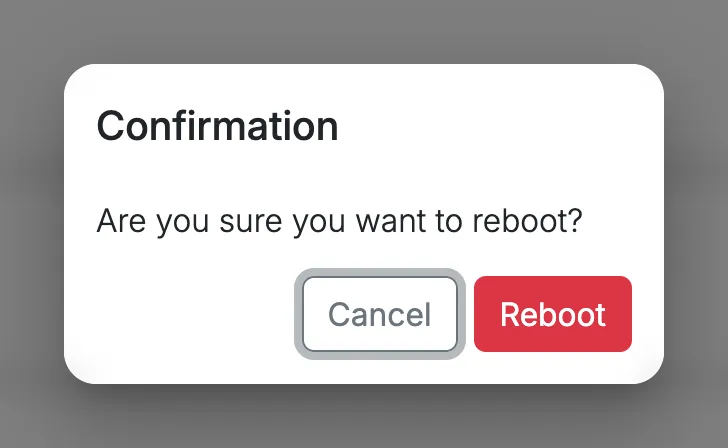
Reboot restarts the node, after you confirm.
Everything configured
Section titled “Everything configured”