
Snapshots
A snapshot is a read-only copy of an app’s data as it was at one moment. The node takes them by itself and removes old ones, following the pool’s snapshot schedule. A snapshot only takes up space for what has changed since it was taken, so keeping many of them costs little.
Open an app’s details and select Snapshots.
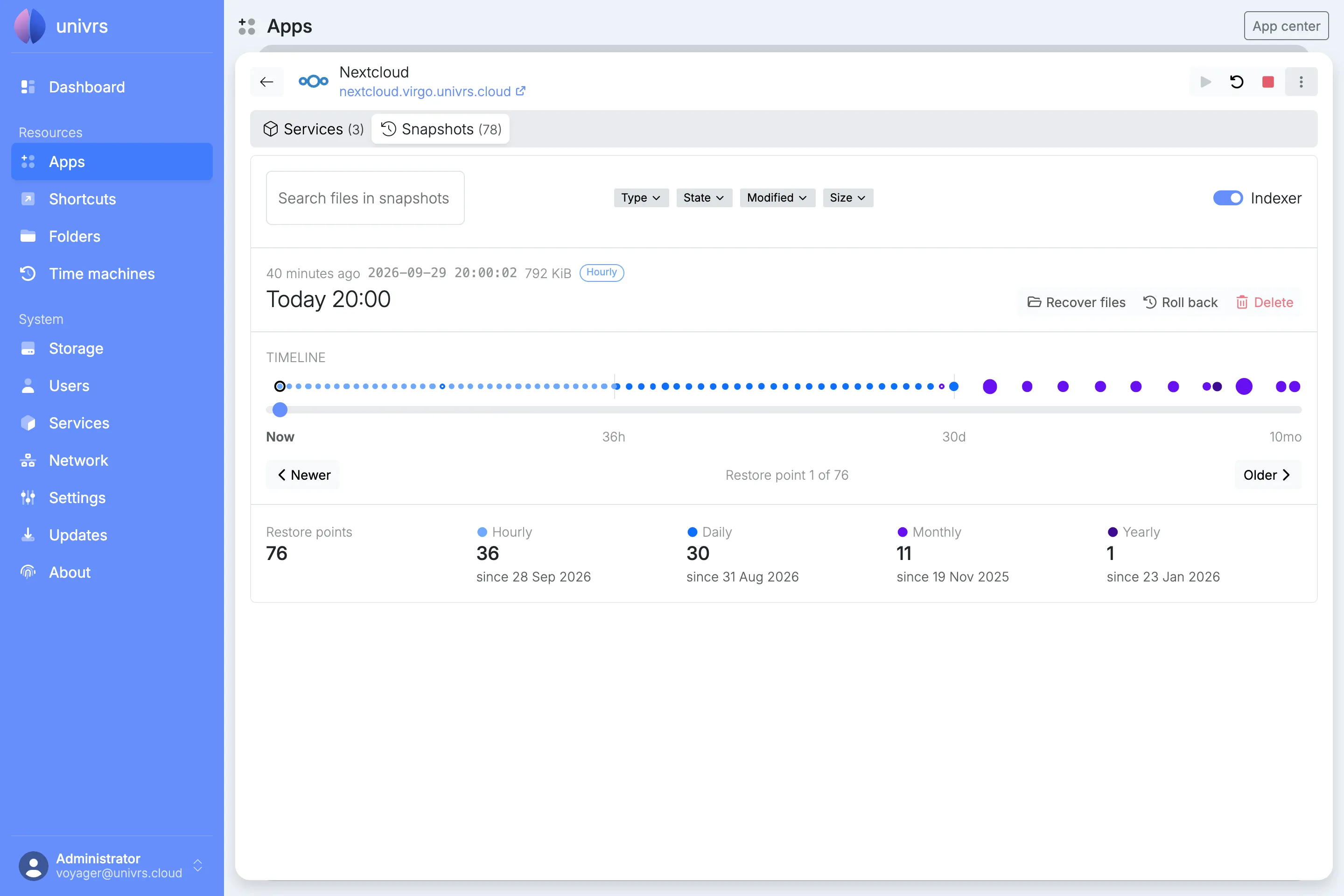
Restore points
Section titled “Restore points”Snapshots taken at the same moment by different schedules, such as the daily and the monthly one at midnight on the first of the month, are shown together as one restore point.
The selected restore point shows when it was taken, the space it takes up, and the schedules that keep it: Frequently, Hourly, Daily, Monthly or Yearly. The space is the data that only this restore point still holds, which is what deleting it would free.
Timeline
Section titled “Timeline”The timeline runs from Now on the left to the oldest restore point on the right. Each schedule gets an equal stretch of it, so the many recent restore points are spread out and the few old ones fit in too. The marks under it show how far back each stretch reaches.
Each dot is a restore point. The bigger the dot, the more space it takes up, and a hollow dot holds nothing that the others do not. Hover over a dot to see its details.
To choose a restore point, select its dot, drag the slider, or use Newer and Older. With the slider selected, the arrow keys step from one restore point to the next.
On a narrow screen, the timeline becomes a set of orbits around the app’s icon, one per schedule, going round clockwise from Now.
Below, the page counts the restore points, and how many each schedule keeps and since when.
Recovering, rolling back and deleting
Section titled “Recovering, rolling back and deleting”Recover files, Roll back and Delete are coming soon. Until then, see Recovering files.
Searching files
Section titled “Searching files”When the app’s Indexer is on, its snapshots are added to the indexer’s catalogue of files, and you can search it for earlier and deleted versions of the app’s files. Turn it on with the switch at the top right of Snapshots. The indexer catalogues new snapshots every hour, so files show up in the search after its next run.
Type part of a file’s name, or of a folder it is in, into Search files in snapshots and press Enter.
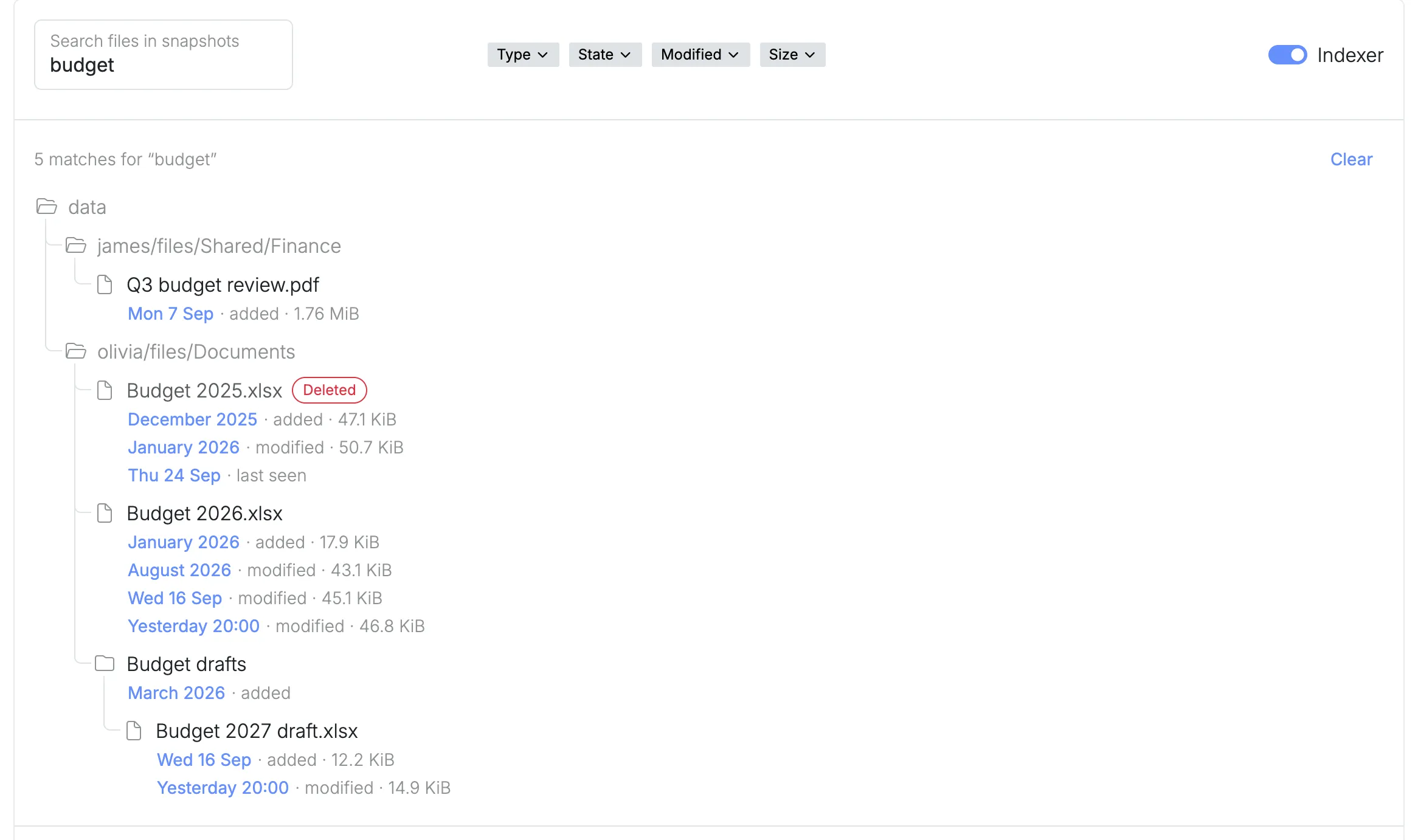
The results are shown as a tree of the folders they are in. A file that no longer exists is marked Deleted. Under each file are the restore points that hold a version of it, with what happened to it there, such as added, modified or last seen, and its size. Select a restore point to show it on the timeline.
Narrow the search down with Type for files or folders only, State for files that still exist, were changed, renamed or moved, never changed or deleted, Modified for when the file was last changed, and Size. When there are more results, Load more shows the next ones, and Clear removes the results.
Recovering files
Section titled “Recovering files”Recovering files from Snapshots is coming soon. Until then, find the file with the virgo indexer commands on the node:
virgo indexer search report.pdfEach result shows where the file is now, or, if it was deleted, the path to recover it from inside the snapshot that still holds it. Copy the file back from there. virgo indexer history lists every version of a file, and virgo indexer deleted the files that were deleted.