
Shortcuts
Shortcuts are links on the Dashboard to things that are not apps on the node, such as a printer, a router or a website. A shortcut can also give a device on your network its own address under the node’s domain, reached through the node.
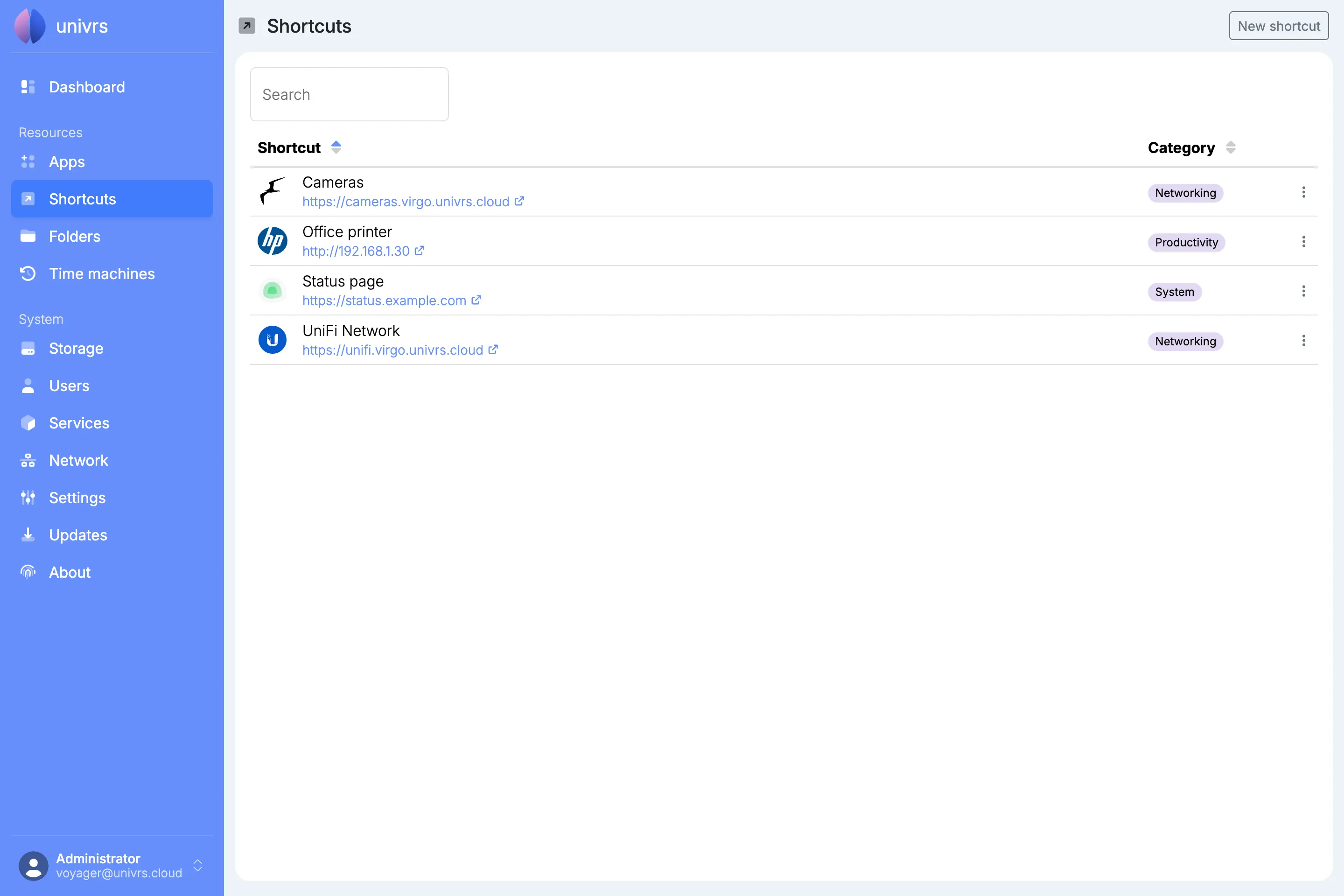
For each shortcut, the list shows its icon, title, address and category. Select an address to open it. Sort the list by title or category with the arrows in the column headers, and use Search to find a shortcut by its title, address or category.
Adding a shortcut
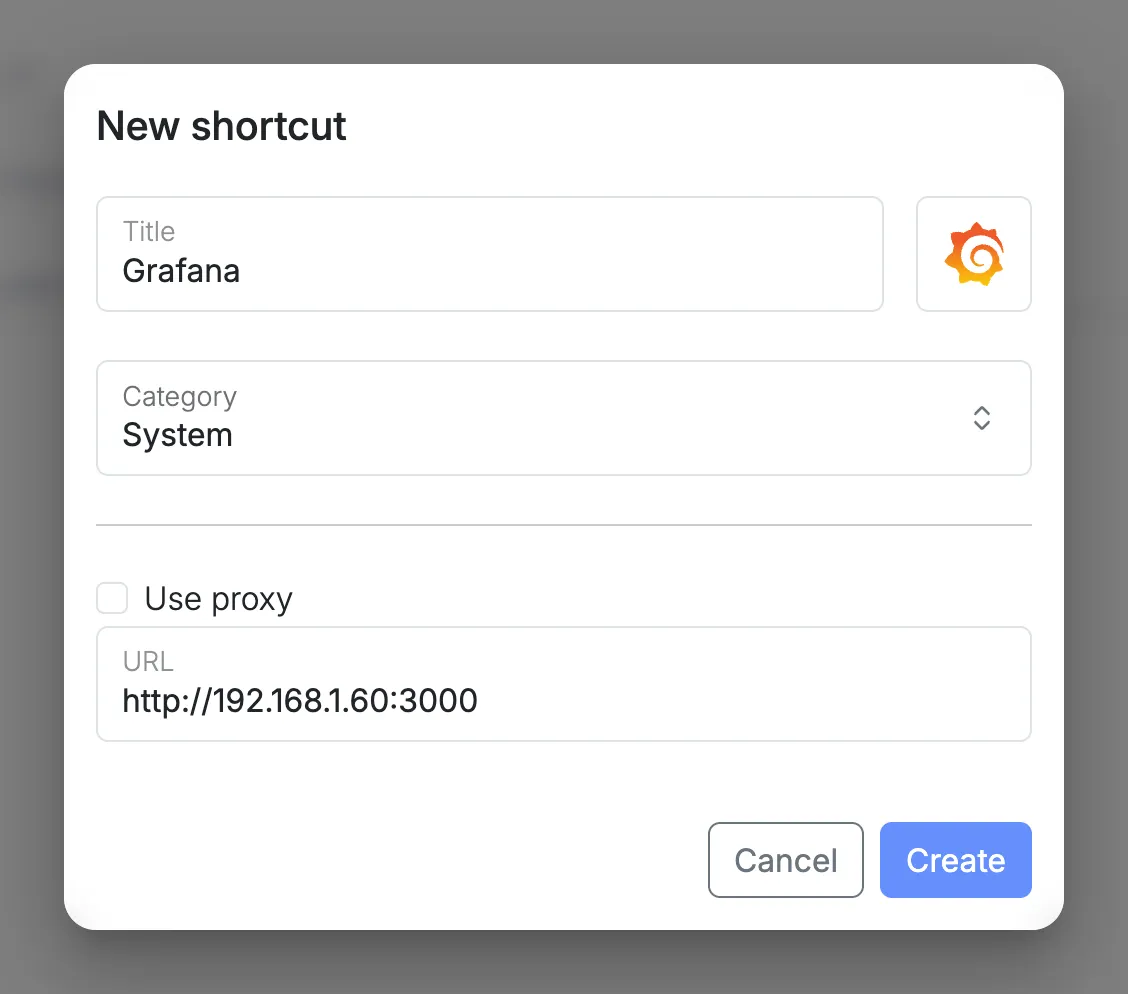
Section titled “Adding a shortcut”Select New shortcut, then enter:
- Title: the name shown on the Dashboard.
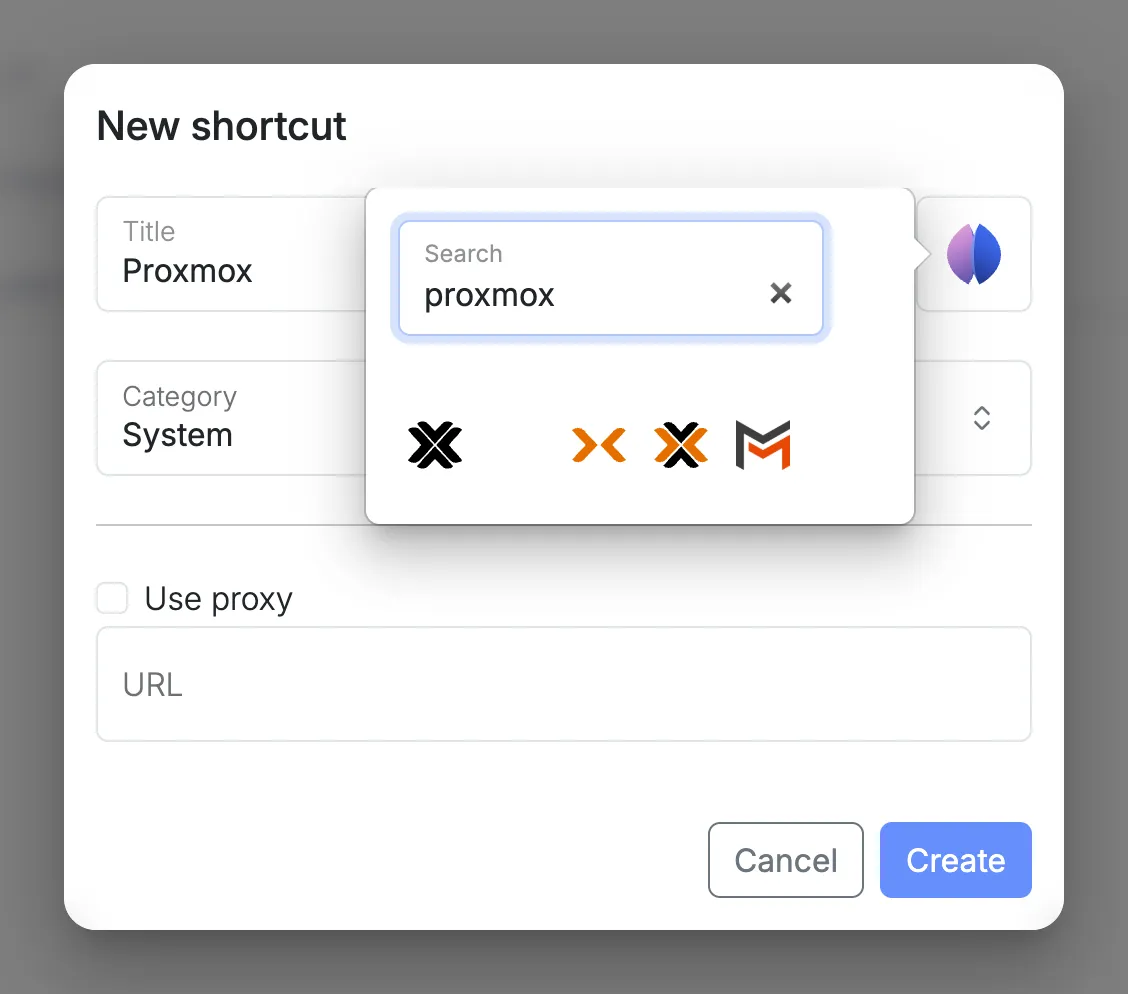
- Icon: select the box next to the title and search for an icon by name, then select one.
- Category: the group it appears in on the Dashboard.
- URL: the address the shortcut opens.
Reaching a device through the node
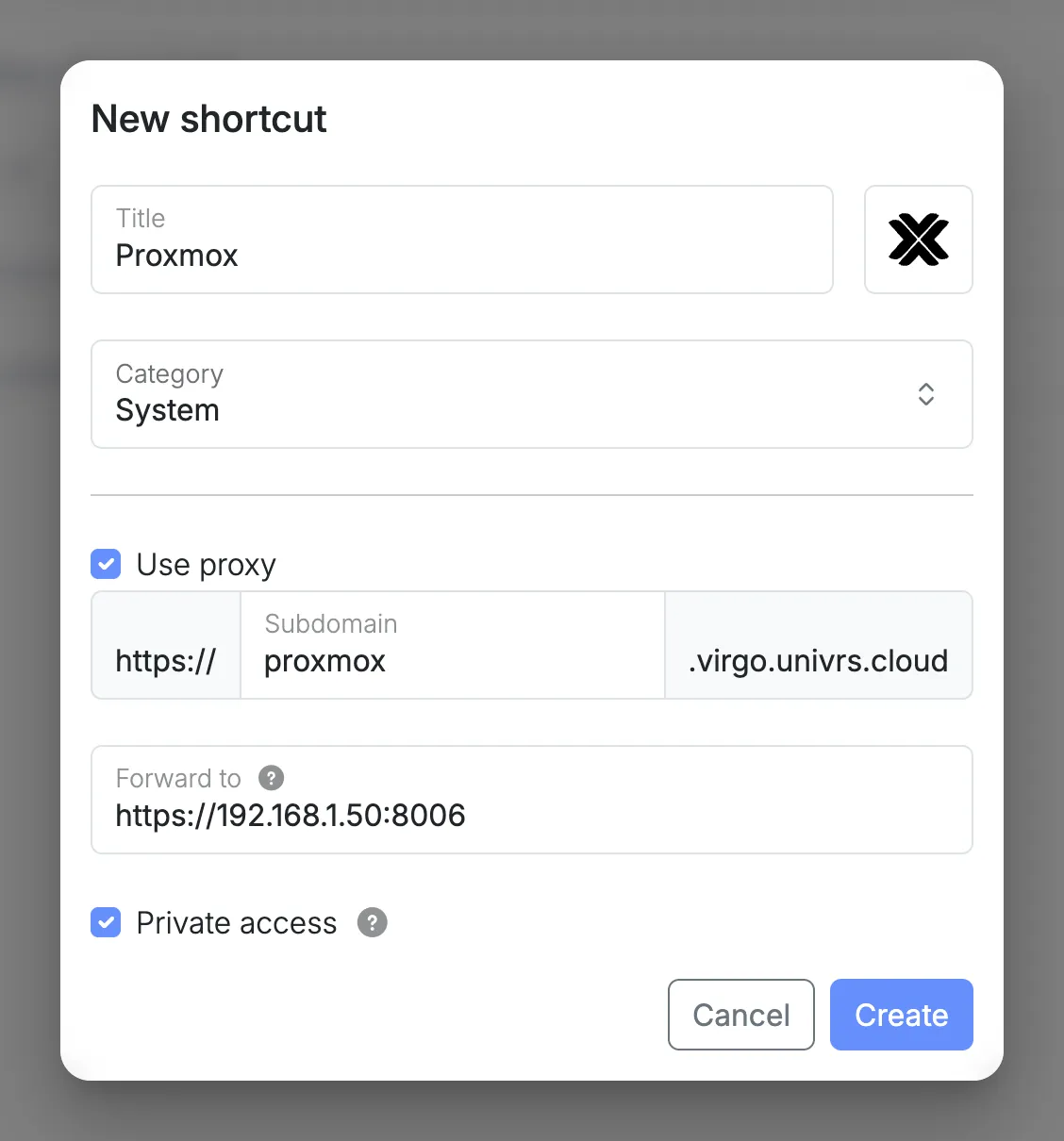
Section titled “Reaching a device through the node”Select Use proxy to open a device on your local network at an address under the node’s domain, instead of at its IP address:
- Subdomain: the first part of the new address, for example
proxmoxforhttps://proxmox.virgo.univrs.cloud. - Forward to: the device’s address on your local network, for example
https://192.168.1.50:8006. - Private access: only users signed in to the node can open it. Without it, anyone with the link can.
The new address gets a certificate like the node’s apps, so browsers trust it even when the device only has a self-signed one.
As with the apps, private access applies from outside your local network. On your local network and over the VPN, the address opens without signing in. See Authentication.
Editing or deleting a shortcut
Section titled “Editing or deleting a shortcut”Open a shortcut’s menu:
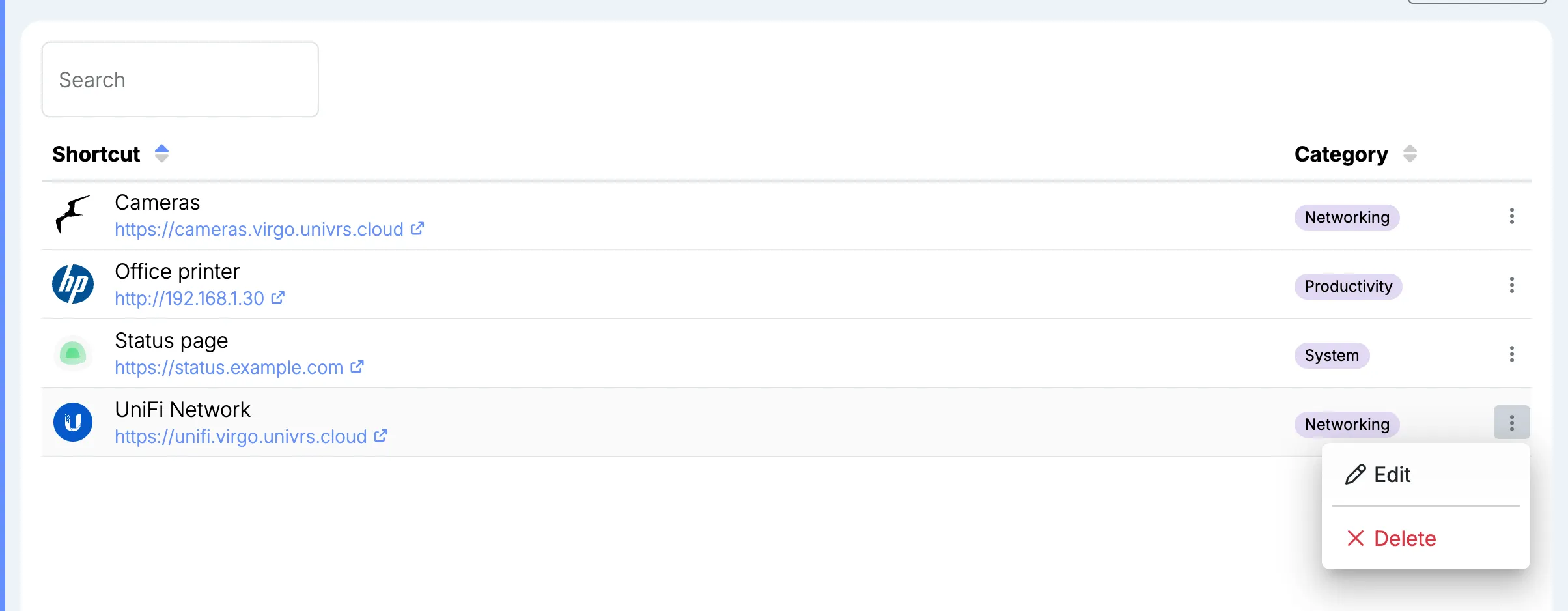
- Edit: change anything you entered when adding it.
- Delete: remove the shortcut. For a shortcut through the node, its address stops working too.
While a change is being applied, a spinning gear takes the place of the menu.
On the Dashboard
Section titled “On the Dashboard”The Dashboard shows shortcuts together with the apps, grouped by category.
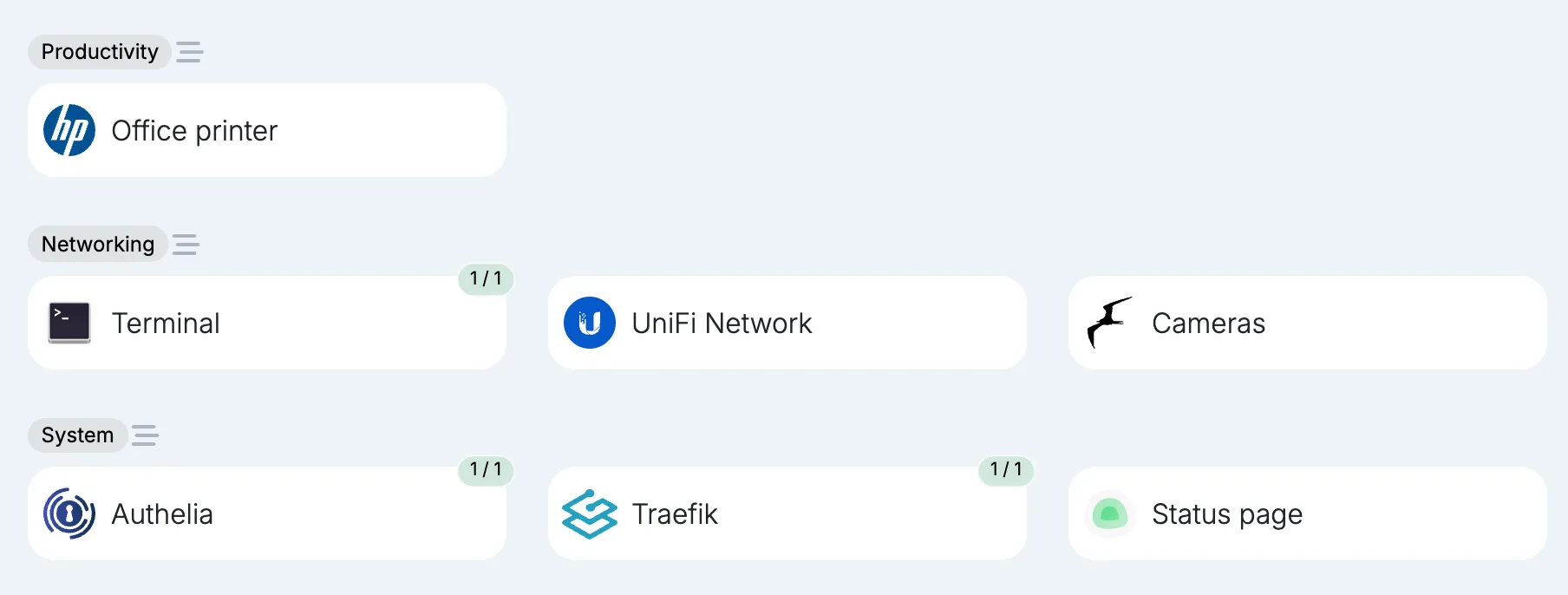
To change their order, see Rearranging cards.